
TablePress Data Not Updating? 8 Fixes That Work
Some links on this page are affiliate links. If you buy through them we may earn a commission, at no extra cost to you. It never changes our verdict. How we test and make money
On this page
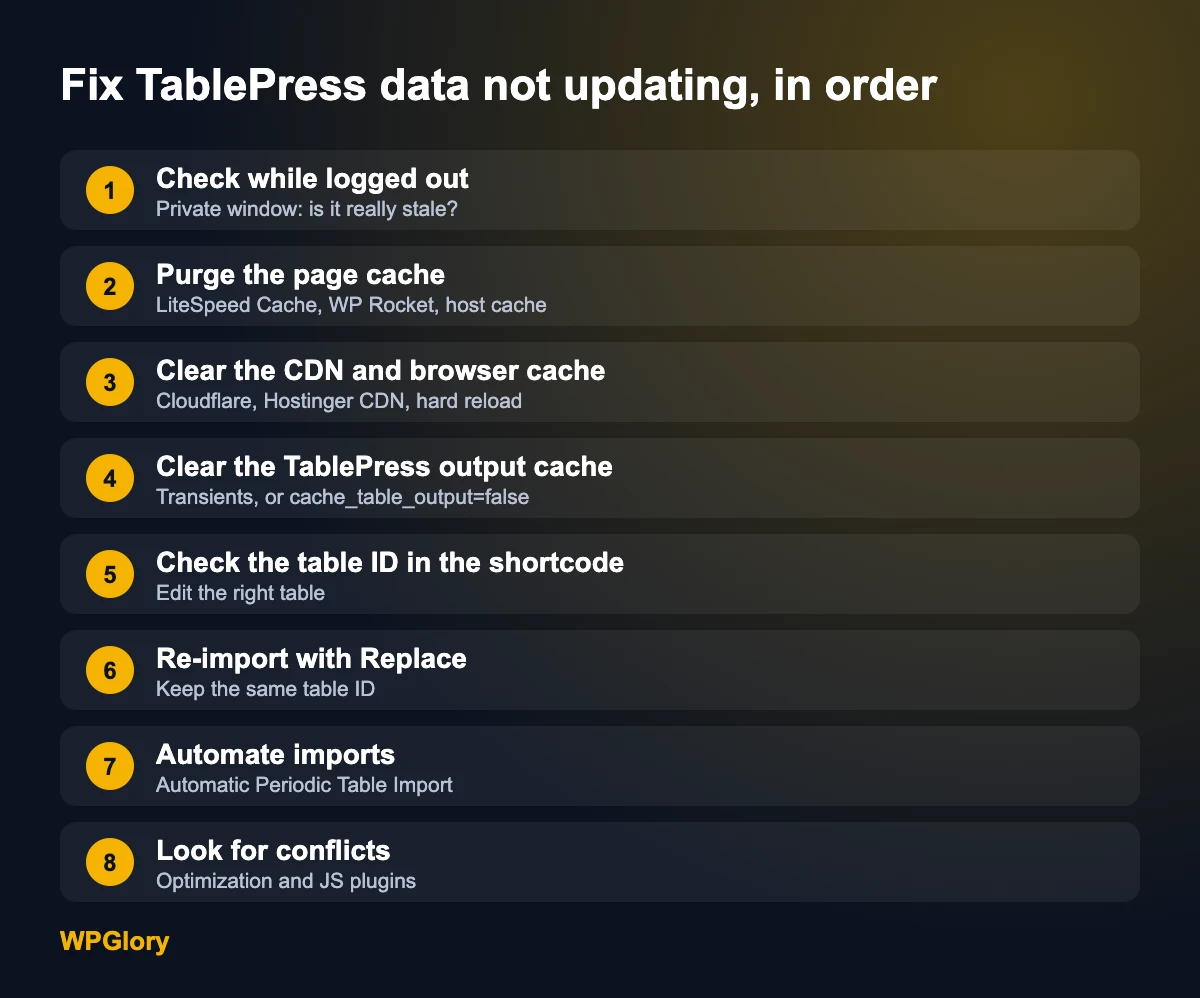
Short answer: TablePress data not updating on the front end almost always means the table saved correctly, but a cache is serving an old copy. Check the page while logged out, purge your page cache and CDN, then clear the TablePress output cache or add [table id=1 cache_table_output=false /] to the shortcode. If the data comes from a file, re-import it with Replace existing table so the table ID stays the same.
You edit a table in TablePress, click Save Changes, and see the success message. Then you open the page and the old numbers are still there. Or the table looks right when you are logged in, but visitors see last week’s prices.
TablePress is the most popular table plugin for WordPress, with more than 600,000 active installs, so this is a common problem. The good news: it is almost never data loss. Your changes are in the database. Something between the database and the visitor is serving an old copy. This guide shows how to find that layer and fix it, in the order I check them.
Why TablePress data is not updating
A table passes through several layers before a visitor sees it. Any of them can keep an old version:
| Layer | What it stores | Typical sign |
|---|---|---|
| Browser cache | A copy of the page on the visitor’s device | Only you see old data; a private window shows new data |
| CDN | Copies of pages on servers around the world | Old data in some countries, new data in others |
| Page cache plugin or host cache | A saved HTML copy of the whole page | Logged-in users see new data, visitors see old data |
| TablePress output cache | The rendered HTML of each table | Old data even after you purge the page cache |
| Wrong table or shortcode | Nothing is cached; you edited a different table | The page never changes, whatever you clear |
| Imports | A new table created instead of replacing the old one | The new data exists under a new table ID |
Fix 1: Check the page while logged out
Most caching plugins skip the cache for logged-in admins. So you see fresh data, and your visitors do not. Open the page in a private or incognito window, or on your phone with Wi-Fi turned off. If the private window shows old data and your admin view shows new data, the problem is a cache. Go to Fix 2.
If both views show old data, skip to Fix 4 and Fix 5.
Fix 2: Purge your page cache
Page cache plugins save a full HTML copy of each page. Some clear the copy when you update a post, but they do not always know that a TablePress table on that page changed, because the table is saved separately from the post.
- LiteSpeed Cache: use Purge All in the LiteSpeed menu in the admin bar.
- WP Rocket, W3 Total Cache, WP Super Cache and others: use the clear cache button in the admin bar or the plugin settings.
- Host cache: many hosts run their own server cache. Clear it in your hosting panel too.
If you want a cache plugin that is easy to control, see my test of the best WordPress cache plugins.
On Hostinger? Hostinger runs LiteSpeed web servers with its own cache. Purge it from the LiteSpeed menu in your WordPress admin bar if you use the LiteSpeed Cache plugin, or clear the cache for the site in hPanel. Because the server and the plugin work together, one purge clears the page for every visitor.
Fix 3: Clear the CDN and browser cache
A CDN such as Cloudflare or your host’s CDN keeps copies of your pages close to visitors. After you purge the page cache, purge the CDN as well. In Cloudflare, go to Caching, Configuration and use Purge Everything, or purge only the page URL.
Then do a hard reload in your own browser: Ctrl+F5 on Windows or Cmd+Shift+R on a Mac. If you load the table data with JavaScript features such as sorting and search, a hard reload also gets fresh script files.
Fix 4: Clear the TablePress output cache
TablePress has its own cache. It saves the rendered HTML of each table so it does not rebuild the table on every page view. The TablePress developer explains in the support forum that this cache lasts 12 hours and is normally refreshed when you save the table. In rare cases, for example after a database problem, the old copy stays.
You have three ways to fix it:
- Save the table again. Open the table, make no change, and click Save Changes. This refreshes the cache for that table.
- Turn off caching for one table. Add the parameter to the shortcode:
[table id=1 cache_table_output=false /]. Use this when cells contain other shortcodes or dynamic content that must always be fresh. - Delete the cached copies. The cache is stored as WordPress transients whose names start with
_transient_tablepress_c_and_transient_timeout_tablepress_c_. A transient cleaner plugin can delete them. Do not deletetablepress_optionsortablepress_tables; those hold your settings and tables.
Take a backup first. Before you touch the database, make a backup with a plugin such as UpdraftPlus. See my list of the best WordPress backup plugins.
Fix 5: Check the table ID in your shortcode
It sounds simple, but it is a common cause. You may have two tables with the same name, for example after a duplicate or an import, and you are editing one while the page shows the other.
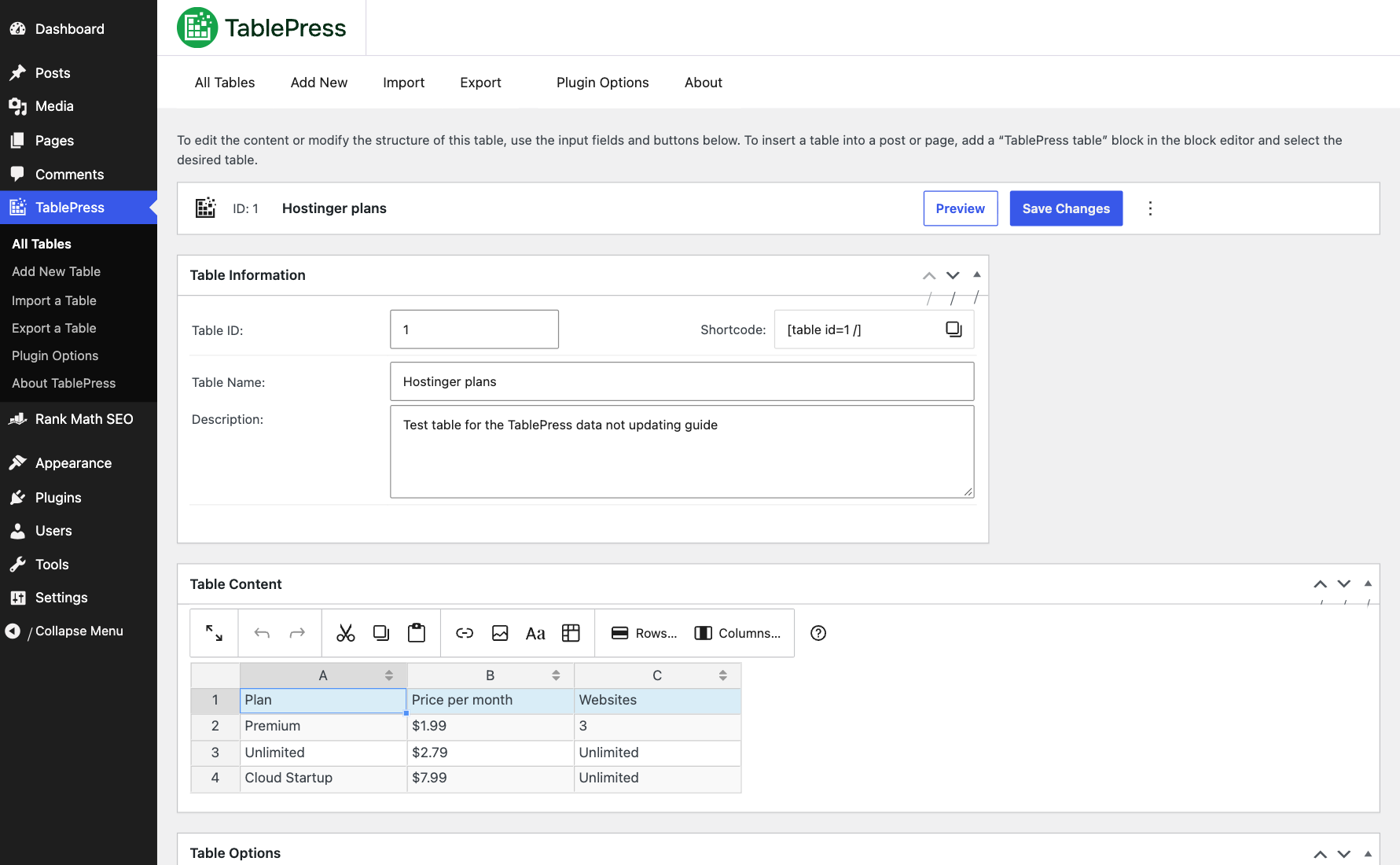
Open TablePress, All Tables, and note the ID of the table you edited. Then open the page and check the TablePress block or the shortcode. The number in [table id=1 /] must match. The Edit Table screen shows both the ID and the shortcode at the top.
Fix 6: Re-import with “Replace existing table”
If you update your data in Excel or Google Sheets and import it again, check the import type. Add as new table creates a second table with a new ID. Your page still shows the old one. That is why the data looks like it is not updating.
Go to TablePress, Import, choose your source (file upload, URL, file on server or manual input), then select Replace existing table and pick the table to replace. The data is updated and the table ID stays the same, so every page that shows the table gets the new data.
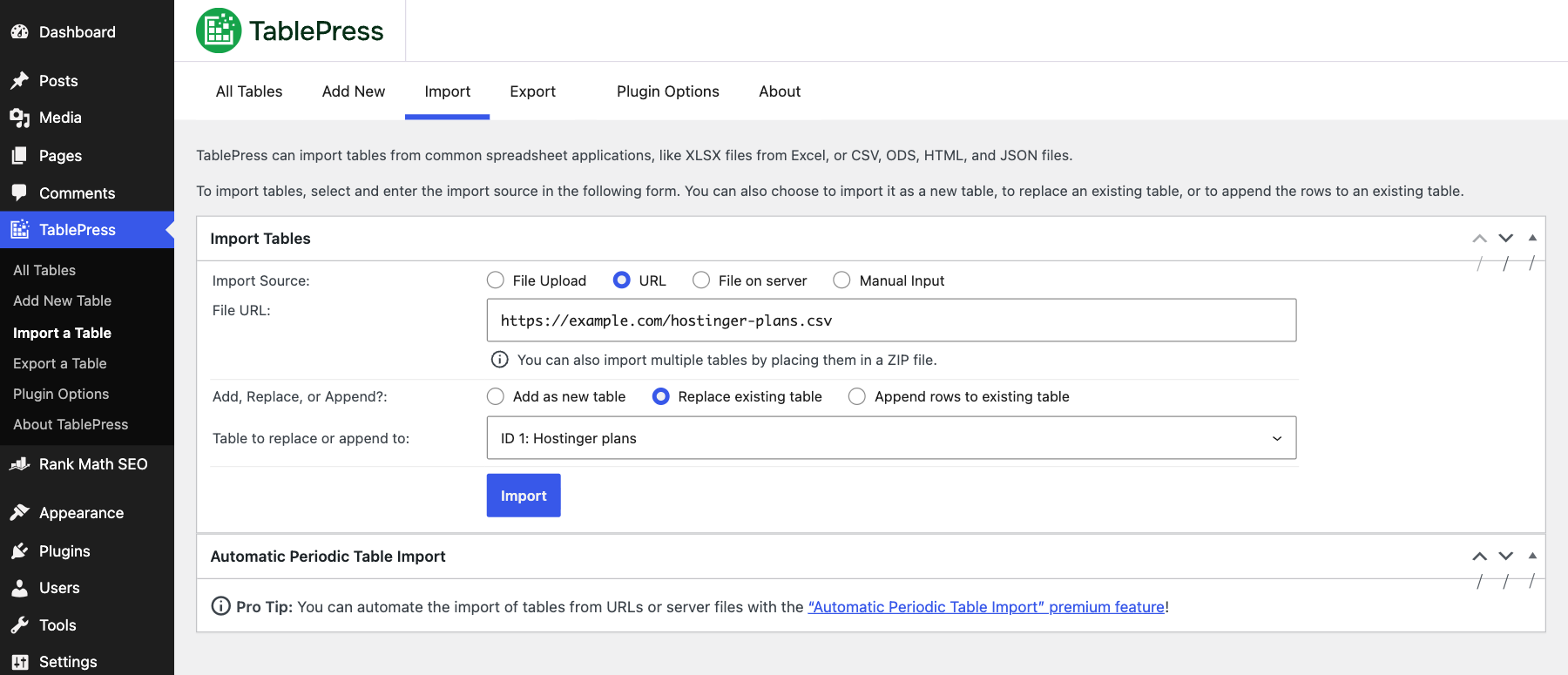
Use Append rows to existing table only when you want to add rows below the current data, such as a log or a results list.
Fix 7: Automate imports from Google Sheets or a URL
If your data changes often, importing by hand every time is where mistakes happen. TablePress has an Automatic Periodic Table Import premium feature. The Import screen of the free version shows it as a Pro tip. It re-imports a table from a URL or a server file on a schedule, so a published Google Sheet or a CSV export can keep the table up to date for you.
Two things to know when you set it up:
- The scheduled import uses WordPress cron, which runs when someone visits the site. On a quiet site, set up a real server cron job in your hosting panel so imports run on time.
- After each import, the page cache may still hold the old page. Set your cache plugin to purge that page on a schedule, or exclude it from the page cache.
Fix 8: Look for plugin conflicts
If none of the above works, another plugin may be in the way. Optimization plugins that combine or delay JavaScript can stop the TablePress sorting and search features from loading. Security plugins and object caches can also keep old data.
- Make a backup.
- Turn off your optimization and cache plugins one at a time and test the page while logged out.
- Switch to a default theme for a moment if the problem continues.
- When the table updates, turn the plugins back on one by one to find the cause.
If you use an object cache, such as Redis or Memcached, flush it as well. Some hosts add one by default. Hosting with a clear cache panel, such as Hostinger hPanel, makes these checks faster.
How to stop TablePress data from going stale again
- Exclude table pages from the page cache if the data changes every day, such as prices or live scores.
- Add
[table id=N cache_table_output=false /]to tables with shortcodes or dynamic data inside cells. - Always import with Replace, never Add, when you update existing data.
- Give tables clear names and delete old copies so you never edit the wrong one.
- Use a host with an easy cache control, so a purge is one click. On Hostinger you can purge from WordPress or from hPanel.
TablePress alternatives with live data
If your table must always be live, for example connected to Google Sheets or your database, Ninja Tables is an alternative that can connect a table to sources such as Google Sheets. TablePress stays my pick for simple tables because it is light and free.
Frequently asked questions
Why does my TablePress table show old data?
In most cases a cache serves an old copy of the page or the table. Check the page while logged out, purge your page cache, CDN and browser cache, then save the table again or add cache_table_output=false to the shortcode.
Does TablePress have its own cache?
Yes. TablePress caches the rendered HTML of each table in WordPress transients. According to the developer, the cache lasts 12 hours and is refreshed when you save the table.
How do I update a TablePress table from a new spreadsheet?
Go to TablePress, Import, choose your file or URL and select Replace existing table. Pick the table to replace. The table keeps its ID, so the shortcode on your pages does not change.
Can TablePress update a table automatically?
Yes, with the Automatic Periodic Table Import premium feature. It re-imports a table from a URL or a server file on a schedule.
Why do I see the new table but my visitors do not?
Cache plugins usually skip the cache for logged-in users. Your visitors get the cached copy. Purge the page cache and the CDN, then check in a private window.
Does LiteSpeed Cache cause TablePress data not updating?
It can serve an old copy of the page if the page cache was not purged after you saved the table. Use Purge All in the LiteSpeed menu, and on Hostinger you can also clear the cache in hPanel.
Sources
- TablePress on WordPress.org
- TablePress FAQ
- TablePress support: updates to table content not showing
- Cloudflare: purge cache
Final verdict
TablePress data not updating is almost always a cache
Check the page while logged out, purge the page cache and CDN, then clear the TablePress output cache. Import with Replace to keep the same table ID, and automate imports when your data changes often. A host with simple cache controls, such as Hostinger, turns this into a one-click fix.




Having trouble with TablePress data not updating? Check out WPGlory’s article for quick troubleshooting tips. Just import a new table from your CSV file, choose “Replace existing table,” and your data will be up-to-date. Remember, no automatic connection, so manual update is essential. Thanks, WPGlory, for the helpful guide! 🚀