Rank Math Setup in 2026: The Complete Guide for Google and AI Search (Every Screen)
Some links on this page are affiliate links. If you buy through them we may earn a commission, at no extra cost to you. It never changes our verdict. How we test and make money
On this page
Short answer: A good Rank Math setup takes about 20 minutes: run the setup wizard in Advanced mode, keep sitemaps and the SEO tweaks on, then switch on the new LLMS Txt module so AI assistants get a clean map of your site. The free plugin now also ships 29 MCP abilities that let Claude or ChatGPT audit and configure Rank Math for you, and an AI Visibility tracker for ChatGPT and Gemini. On my test post, the Rank Math SEO score went from 4/100 to 80/100 in about ten minutes.
Most Rank Math setup guides stop at the setup wizard. That was fine two years ago. In 2026, people also find sites through ChatGPT, Gemini and Google’s AI answers, and Rank Math has quietly added the tools for that to the free plugin: llms.txt, an MCP server for AI assistants and AI Visibility tracking.
So I did a complete Rank Math setup on a brand-new WordPress site and screenshotted every stage, from the plugin search to a post that scores 80/100. You can follow it click by click. I also note which settings I chose and why, what is free and what needs PRO, and the few places where Rank Math’s defaults are not what I would pick. If you are still choosing an SEO plugin, read our Rank Math vs Yoast vs AIOSEO test first.
Who this is for: new Rank Math users, people moving from Yoast or AIOSEO, and anyone who set up Rank Math years ago and has not looked at the new AI search features. You need WordPress admin access and about 20 minutes. Nothing here needs coding.
What is new in Rank Math (late 2026)
Rank Math releases often, so here is what changed in the versions I tested. All of these come from the official free changelog and PRO changelog.
| Feature | Version | Free or PRO | Why it matters |
|---|---|---|---|
Sitemap pre-generation with WP-CLI (wp rankmath sitemap generate) | Free 1.0.280 | Free | Large sites can serve cached sitemap files instead of building them on every request. |
| AI Visibility: Gemini tracking, multi-language, daily/weekly/monthly refresh | Free 1.0.279 | Account + AI plan | Track how ChatGPT and Gemini mention your brand, in your readers’ language. |
| llms.txt output updated to the latest specification | Free 1.0.279 | Free | A cleaner file for AI crawlers that read llms.txt. |
| New MCP tools: 404 logs, sitemap status, redirections, robots.txt, llms.txt | Free 1.0.278 and 1.0.279 | Free | AI assistants can now read more of your SEO setup. |
| MCP connection through OAuth | Free 1.0.278 | Free | Connect an AI assistant without pasting a password into a config file. |
| Content AI pre-fills the focus keyword | Free 1.0.278 | Free (Content AI needs credits) | Faster keyword setup on existing posts. |
| RankBot AI agent (replaces Content AI Chat) | PRO 3.0.120 | PRO | A new AI agent inside the WordPress dashboard. |
Part 1: The Rank Math setup wizard, step by step
Step 1: Install and activate Rank Math SEO
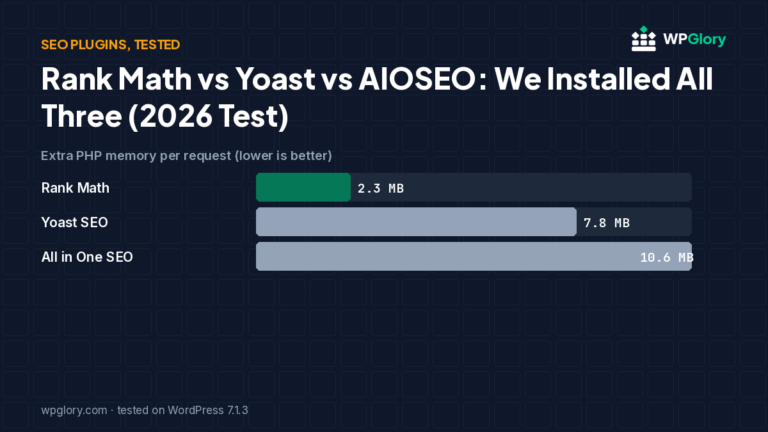
In your dashboard go to Plugins → Add Plugin and search for “Rank Math SEO”. The listing on my test site showed more than 4 million active installations and 7,518 ratings with a five-star average. Click Install Now, then Activate. In our test of 33 popular plugins, Rank Math added about 2.3 MB of PHP memory and loaded nothing extra for visitors, so it is light enough for cheap hosting.
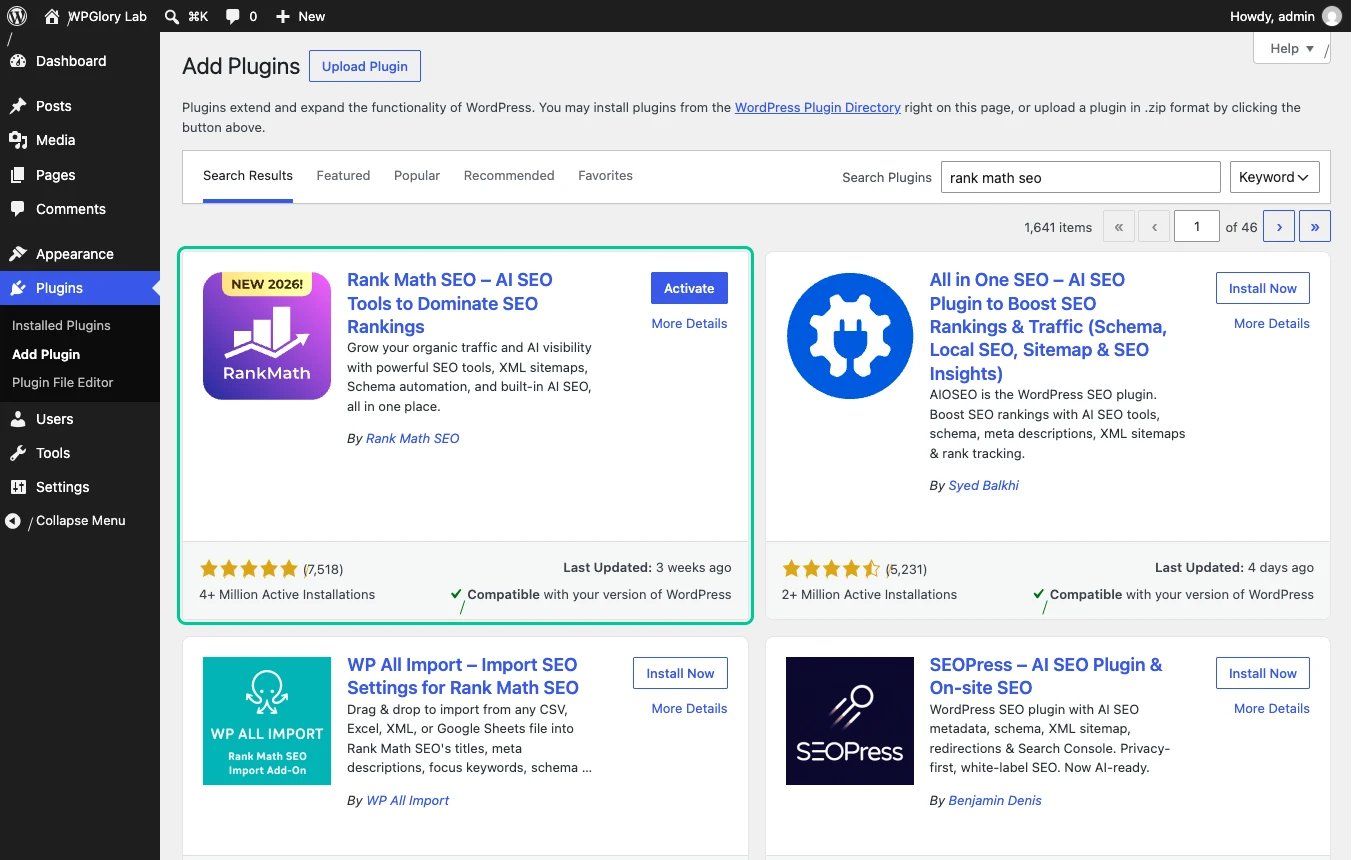
If you are moving from Yoast SEO or All in One SEO, leave the old plugin active for now. Rank Math detects it during the setup wizard and can import your titles, descriptions and settings, so you do not lose any work.
Step 2: Connect your free account (or skip it)
Rank Math first asks you to connect a free Rank Math account. Connecting unlocks keyword suggestions from Google, the SEO Analyzer’s remote tests, Content AI and AI Visibility. You can click Skip Step and connect later from the dashboard.
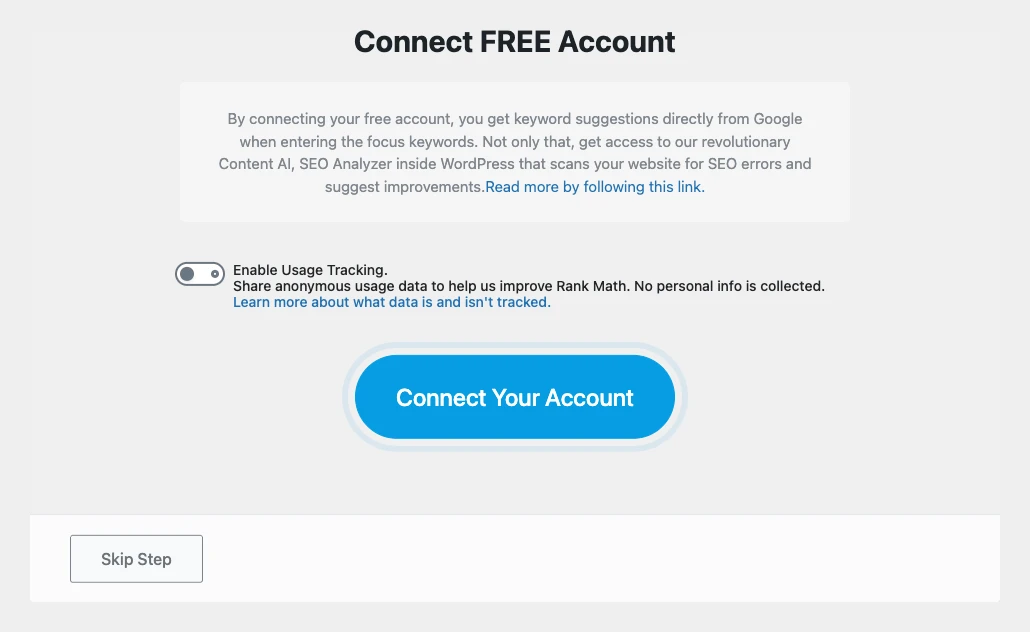
My advice: connect it. The free account costs nothing and several of the best features in this guide depend on it. I skipped it here only because a Playground test site is temporary.
Step 3: Choose Easy or Advanced mode
Next you pick a mode. Easy hides most settings and applies Rank Math’s defaults. Advanced shows every option. Custom Mode (PRO) imports a settings file, which is handy if you manage several sites.
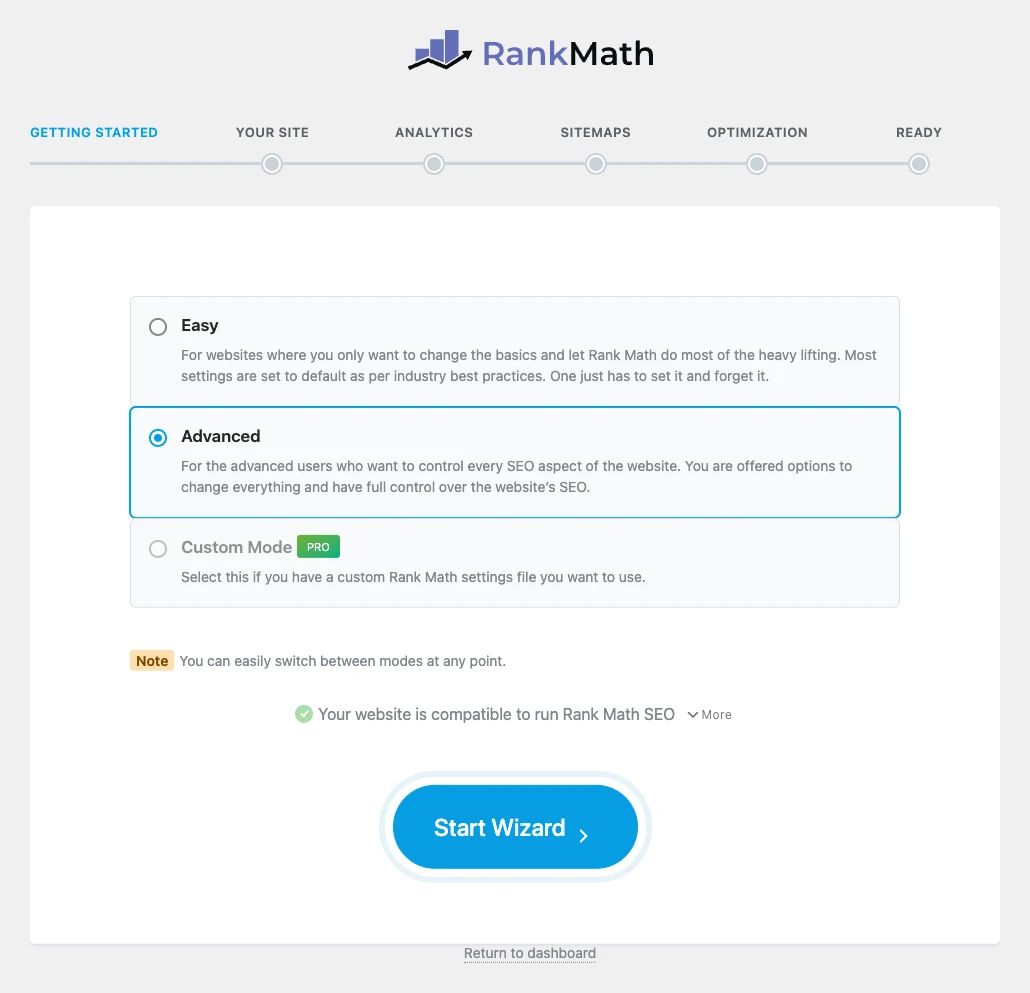
Choose Advanced. You will not change most settings, but you will see them, and you can switch modes at any time. Below the modes, Rank Math runs a quick compatibility check; on WordPress 7.1.3 and PHP 8.3 it passed without warnings.
Step 4: Tell Rank Math about your site
The Your Site step sets the information Google uses for your Knowledge Graph and rich results: what kind of site you run, the site name, an alternate name, the person or organization behind it, a logo for Google and a default social share image.
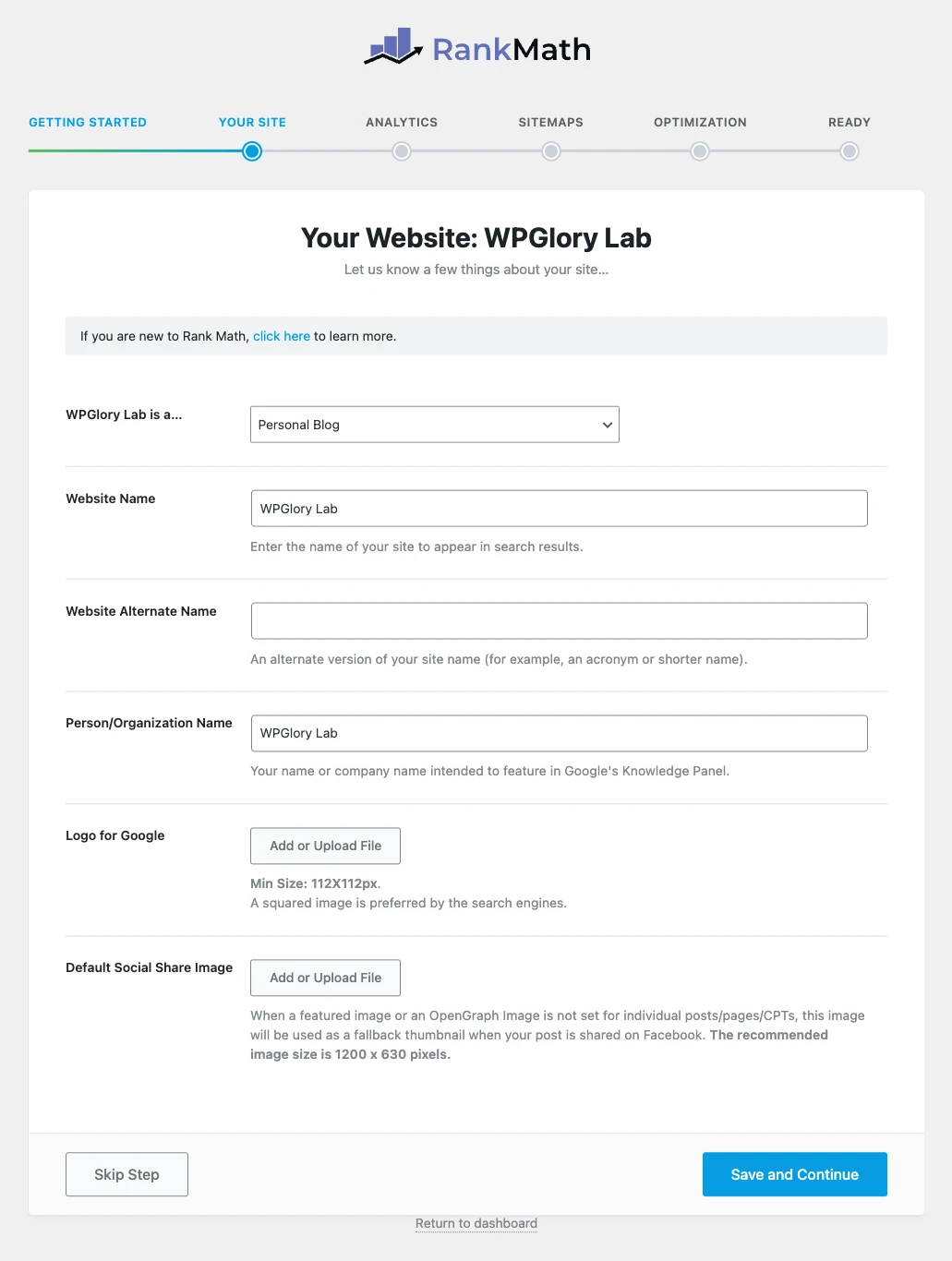
- Site type: pick the closest match. A blog run by a person is “Personal Blog”; a company blog is “Blog” or “Other Business”.
- Logo for Google: upload a square logo of at least 112 × 112 px.
- Default social share image: use a 1200 × 630 px image. It is used whenever a post has no featured image, so your links never share as a blank card.
Step 5: Connect Google Search Console and Analytics
The Analytics step connects Google Search Console and Google Analytics through your Rank Math account. Once connected, Rank Math verifies your site, submits your sitemap and shows clicks, impressions and keyword positions inside WordPress.
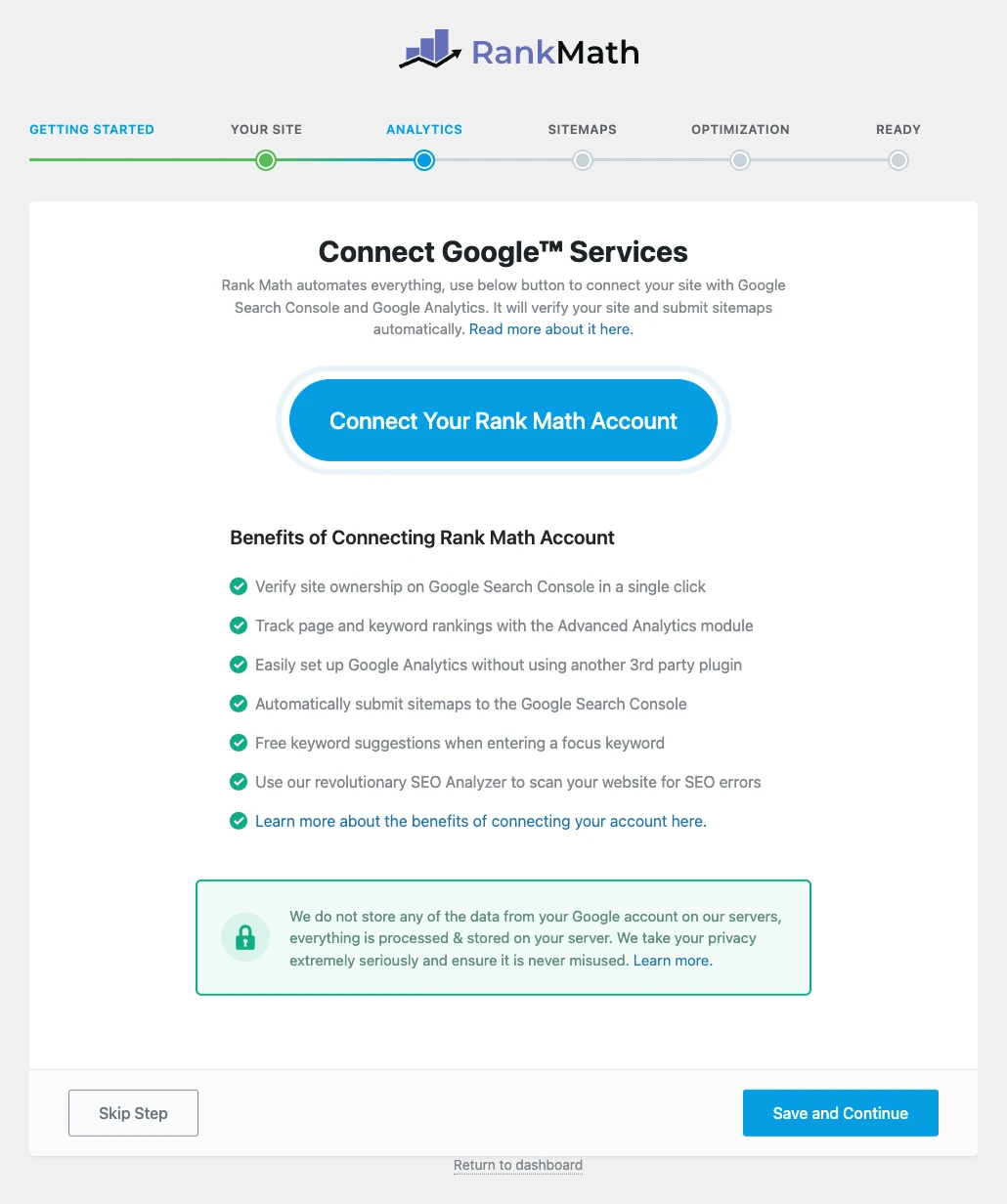
This is the step that pays off most over time, because you can see which posts are growing and which are slipping without leaving WordPress. If you skip it now, you can connect later from Rank Math SEO → General Settings → Analytics.
Step 6: Sitemaps
Keep Sitemaps on and include the post types and taxonomies that have real content. On most blogs that means Posts, Pages and Categories. I leave Tags out unless the tag pages are useful on their own.
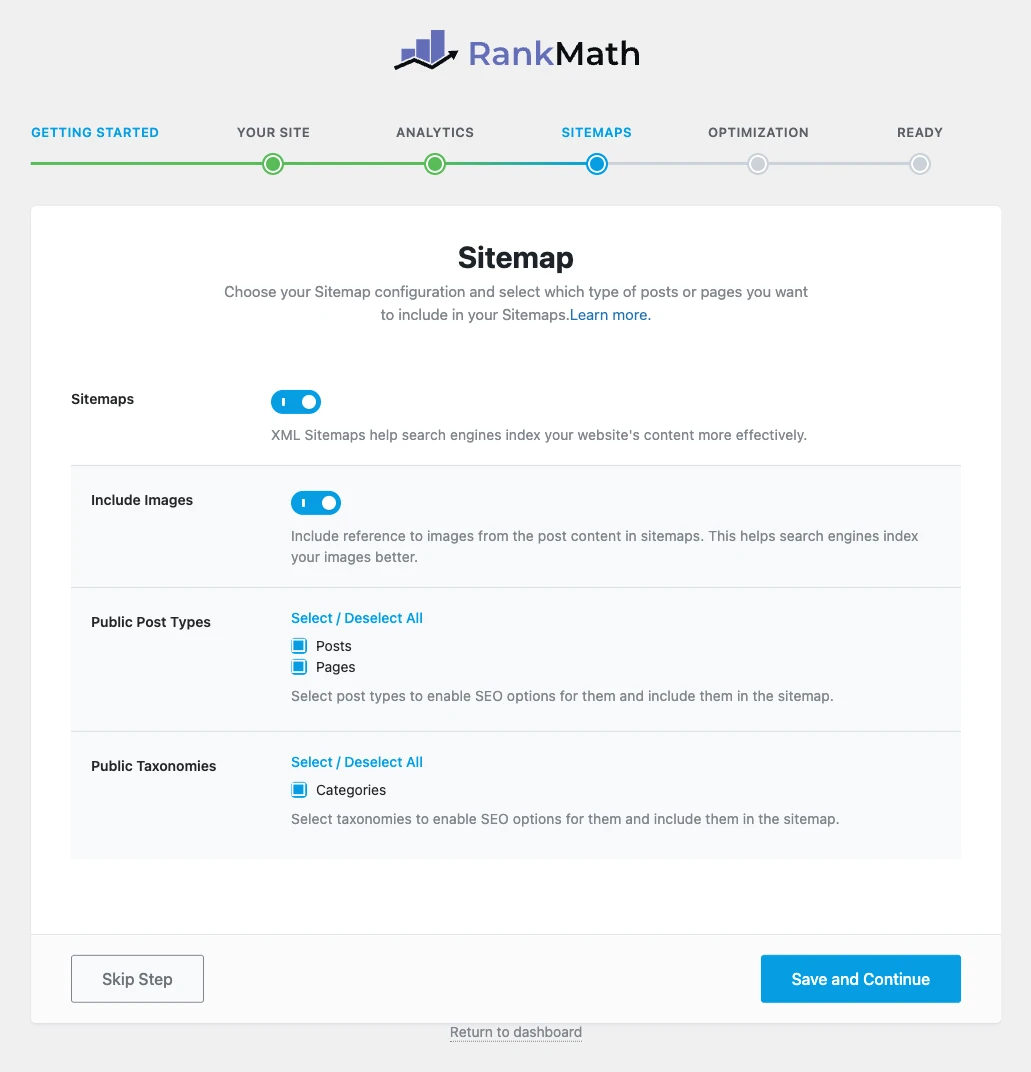
New in 1.0.280: on large sites you can pre-build every sitemap file with the WP-CLI command wp rankmath sitemap generate, so search engines get a cached file instead of waiting for WordPress to build it.
Step 7: SEO tweaks
The SEO Tweaks step has three switches. My Rank Math setup keeps the defaults: noindex empty category and tag archives (on), nofollow external links (off) and open external links in a new tab (on).
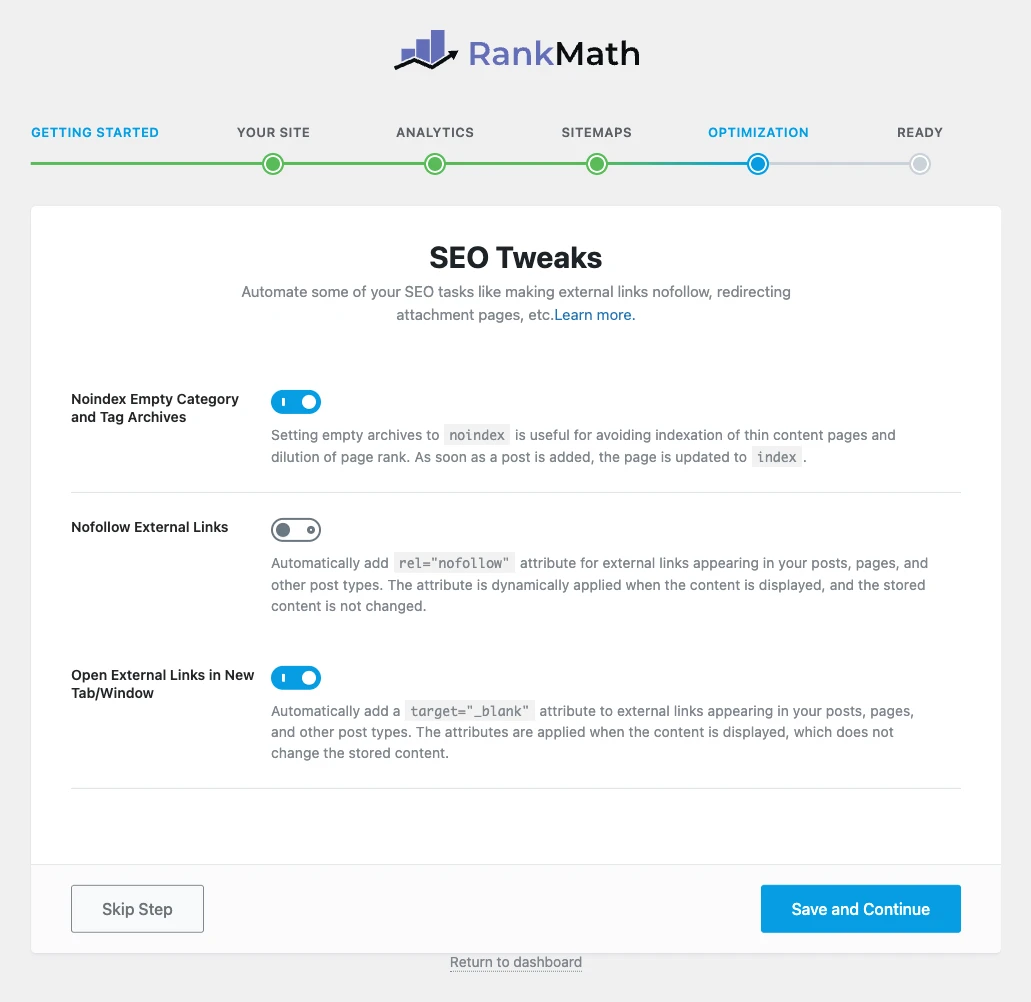
Do not turn on “Nofollow External Links” for every link. Linking out normally to good sources is part of a healthy site, and you can still mark individual links as sponsored or nofollow in the editor.
Step 8: Your site is ready (and auto-updates)
The last basic step confirms the setup and offers to turn on automatic updates for the plugin. Then click Setup Advanced Options to continue.
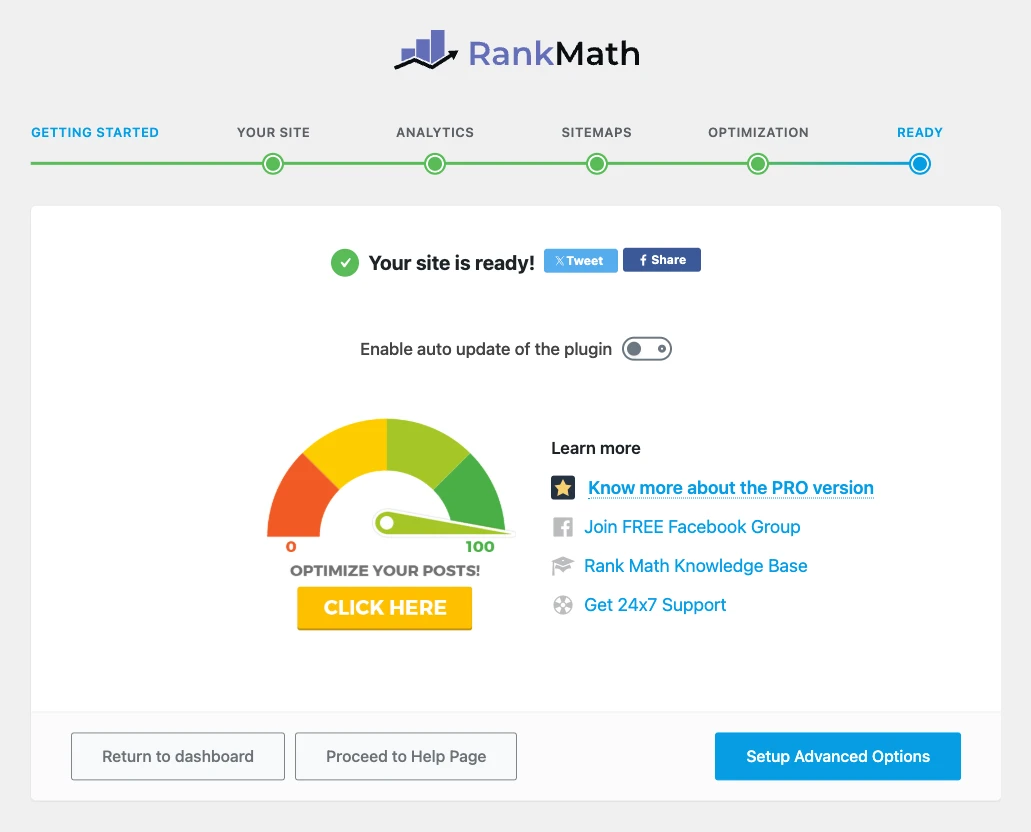
On auto-updates: I turn them on for the free plugin from WordPress.org on sites with good backups. Whatever you choose, keep Rank Math current. See the security note near the end of this guide.
Step 9: 404 Monitor, redirections and schema defaults
The advanced wizard has three short steps: Role Manager (which user roles can change SEO settings), 404 + Redirection and Schema Markup.
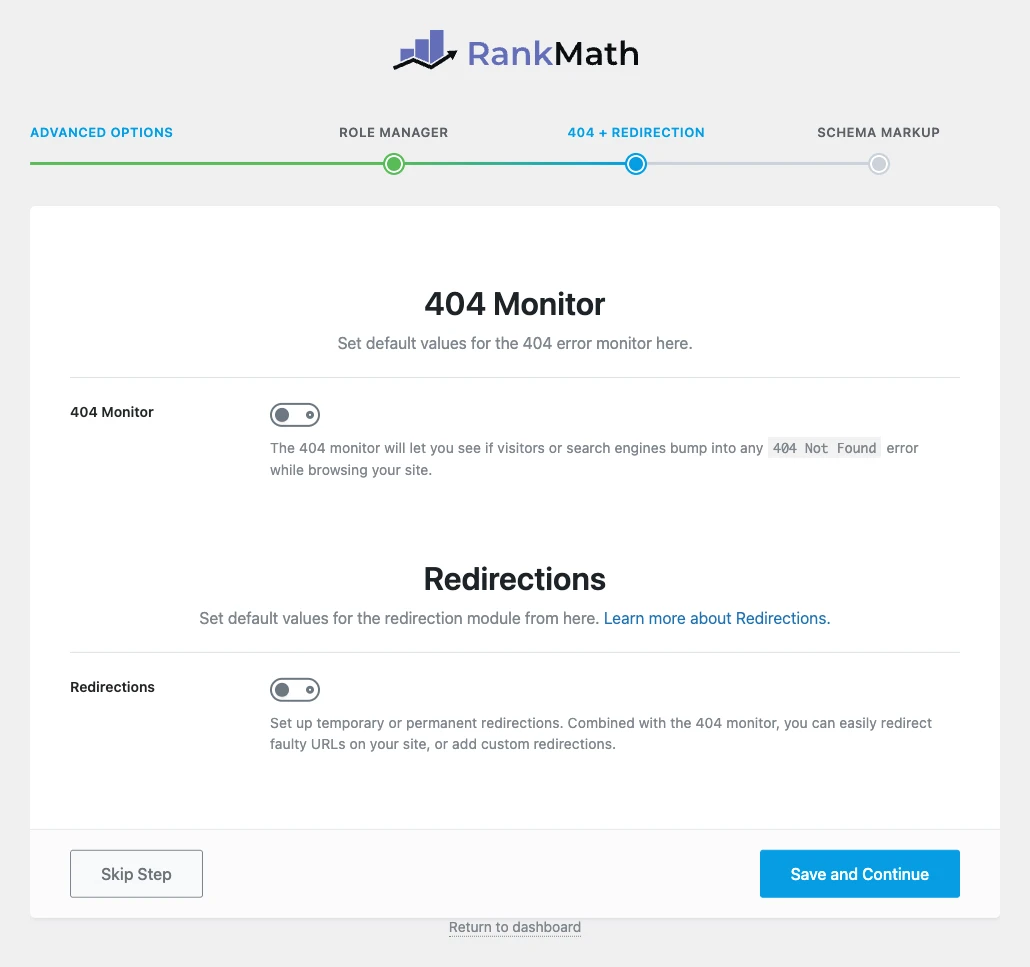
Turn on both the 404 Monitor and Redirections. When you rename a post or delete a page, you can redirect the old URL in a few clicks instead of losing its traffic.
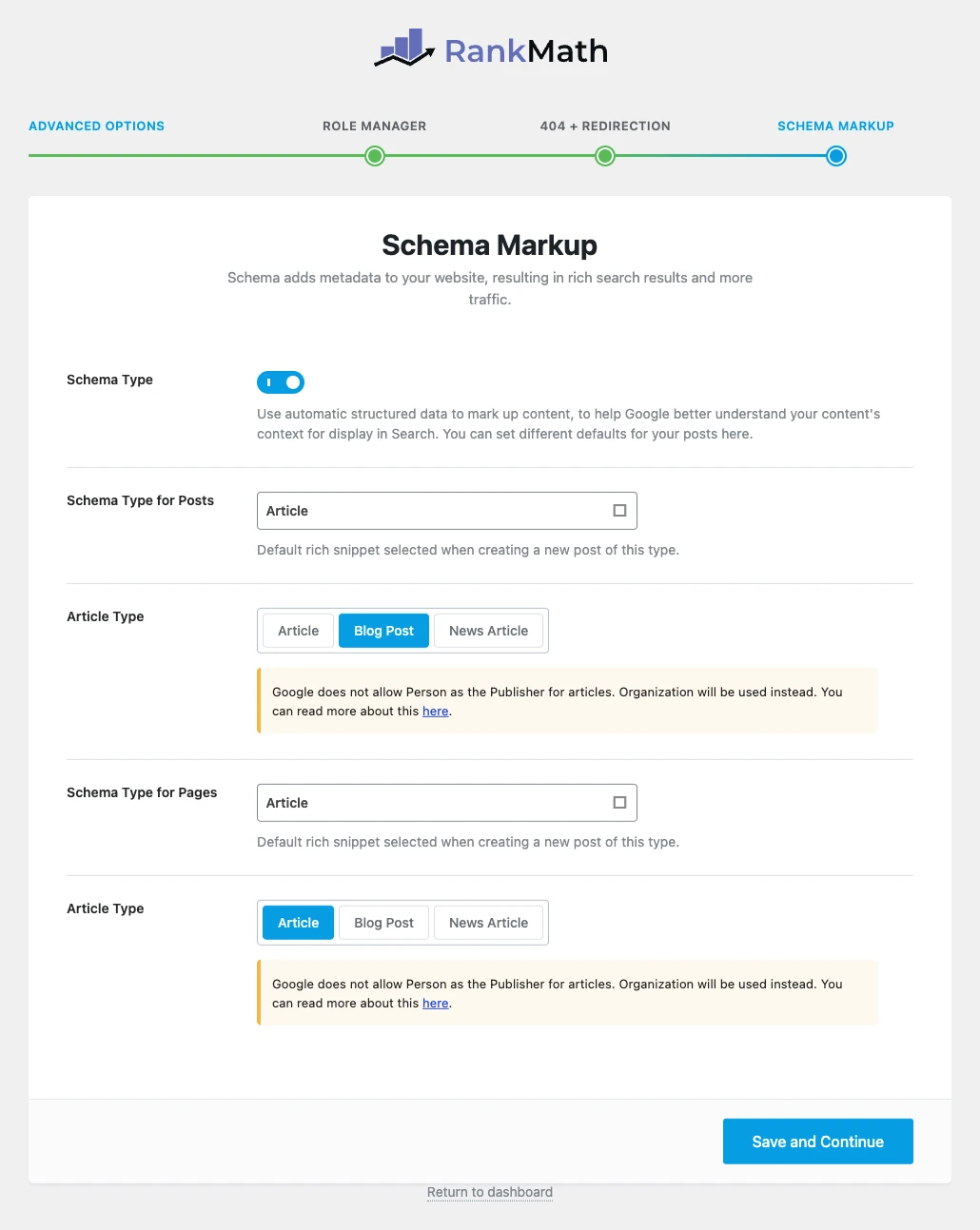
For schema, set Posts to Article with Blog Post as the type, and Pages to Article. You can change the schema on any single post later with the Schema Generator (Part 3).
That is the classic Rank Math setup done. Now for the part most guides skip. If you plan to use the PRO features covered below, you can get Rank Math PRO here; everything in Part 1 works with the free plugin.
Part 2: Set up Rank Math for AI search
After the wizard you land on the Rank Math dashboard. In version 1.0.280 the free plugin’s menu already includes AI Visibility, Content AI and AI Link Genius (the last one is PRO), and the dashboard has a new MCP Setup link.
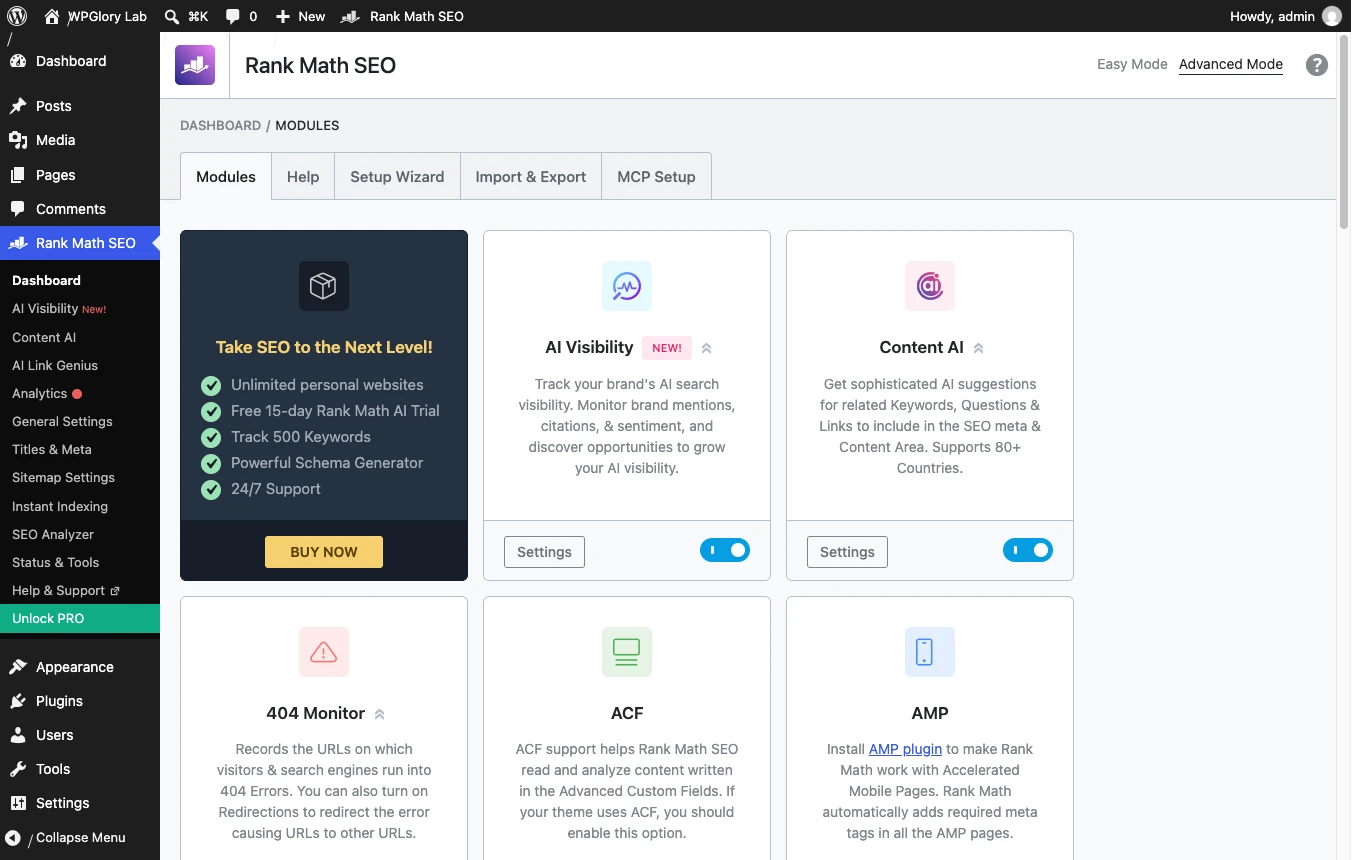
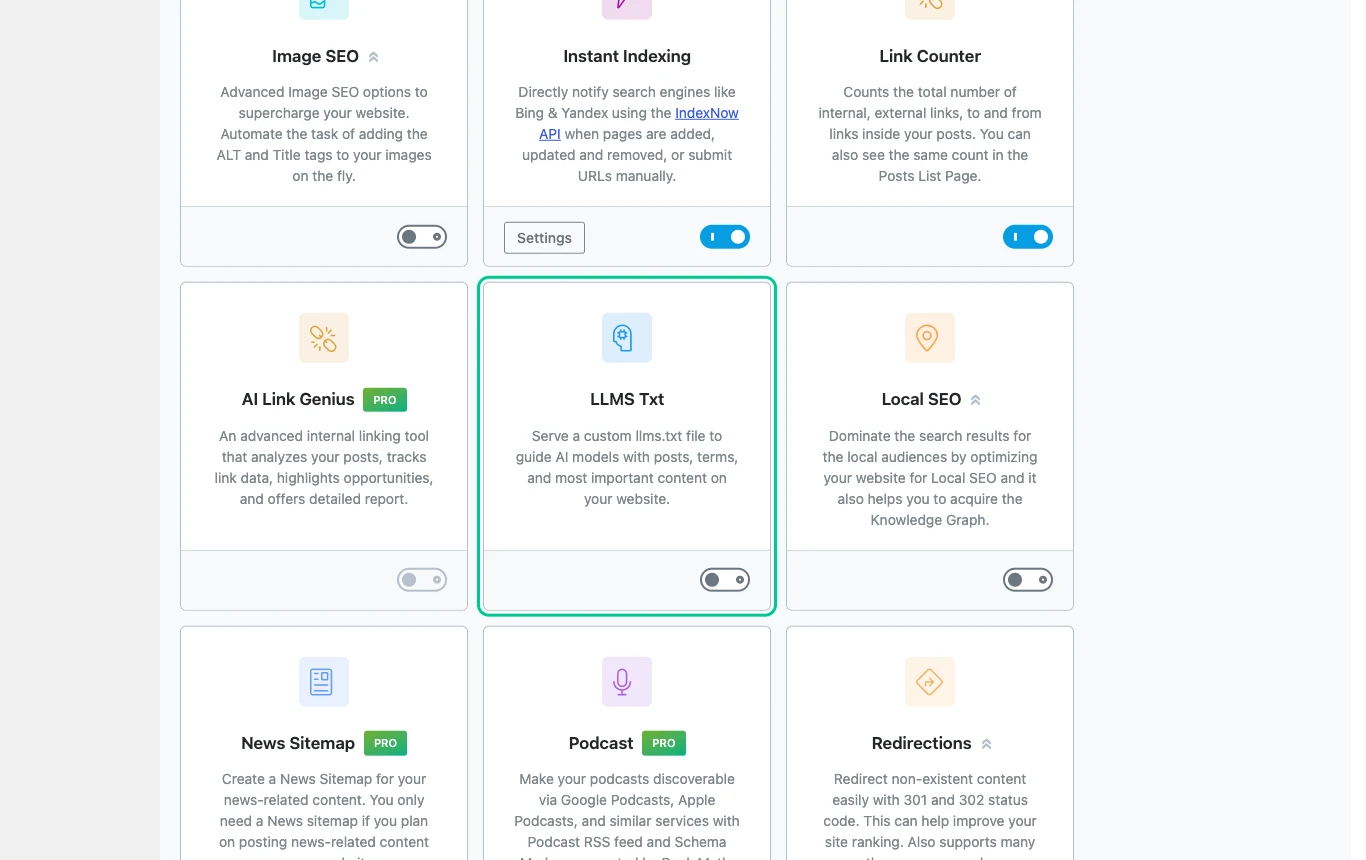
Straight after the wizard, my test site had these modules active: Link Counter, Analytics, SEO Analysis, Sitemap, Rich Snippets (schema), Content AI, Instant Indexing and AI Visibility. LLMS Txt was off, so that is the first thing to change.
Turn on llms.txt
llms.txt is a plain text file at the root of your site that lists your most useful pages with a short summary of each, so AI tools can find your best content quickly. Find the LLMS Txt card on the dashboard and switch it on.
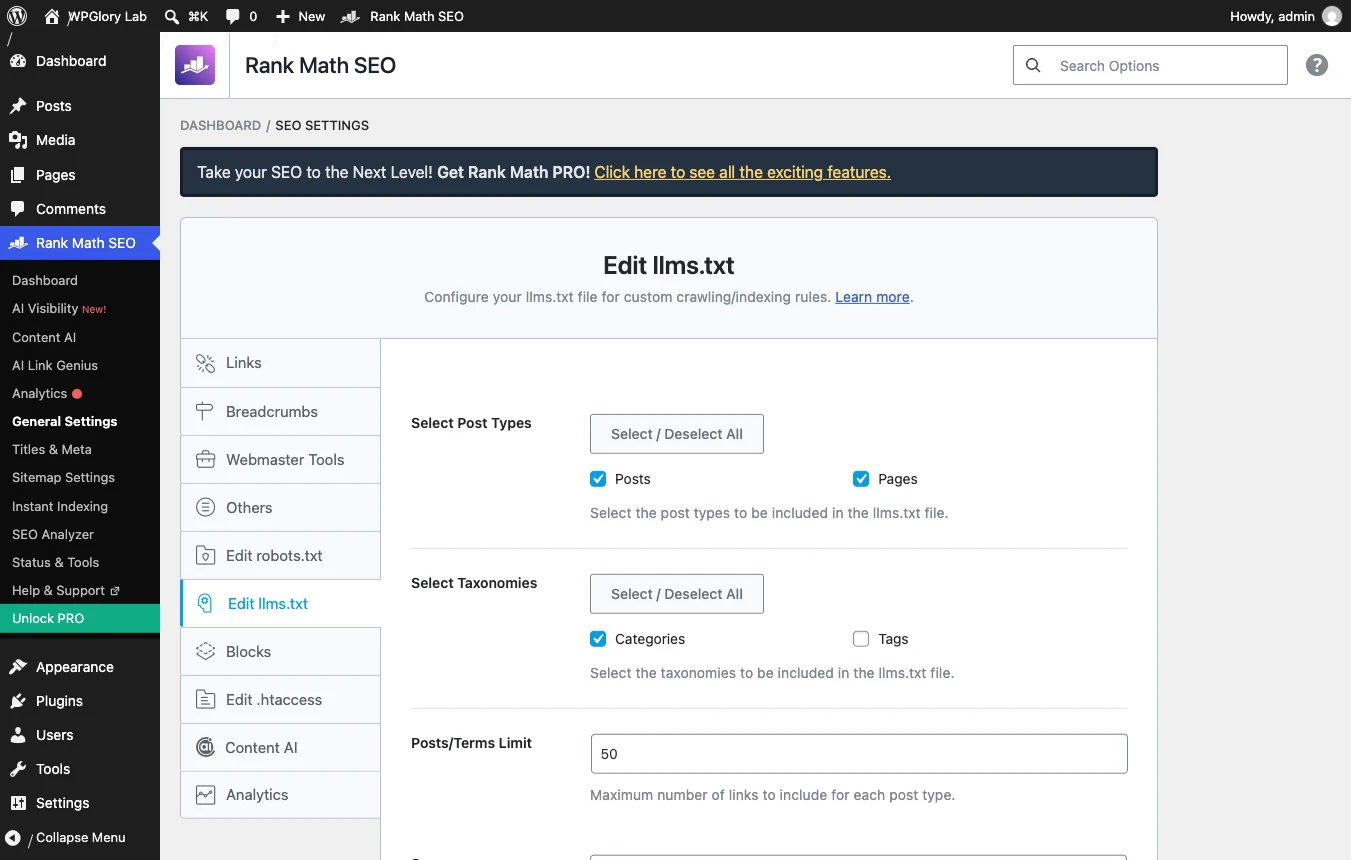
Then open Rank Math SEO → General Settings → Edit llms.txt. Choose which post types and taxonomies to include and how many links to list per type. The default limit on my install was 50. I ticked Categories as well, because category pages are good overviews of a topic.
Save, then open yoursite.com/llms.txt. This is the real file Rank Math generated on my test site (I shortened the Playground URLs to example.com):
Generated by Rank Math SEO, this is an llms.txt file designed to help LLMs better understand and index this website.

# WPGlory Lab

## Sitemaps
- [XML Sitemap](https://example.com/sitemap_index.xml): Includes all crawlable and indexable pages.

## Posts
- [What Is llms.txt and Does Your Site Need One?](https://example.com/what-is-llms-txt-and-does-your-site-need-one/): llms.txt is a plain text file that points AI assistants to your most useful pages. Here is what it does and how to add one.
- [WordPress Security Checklist for Small Sites](https://example.com/wordpress-security-checklist-for-small-sites/): Updates, strong passwords, two-factor login and off-site backups stop most attacks. Here is the checklist we use.
- [How to Back Up a WordPress Site in 10 Minutes](https://example.com/back-up-a-wordpress-site/): If you want to back up a WordPress site properly, you need two things...

## Pages
- [Contact](https://example.com/contact/): Questions about a plugin test? Email hello@wpglory.com.
- [About](https://example.com/about/): WPGlory Lab is where we test WordPress plugins before we recommend them.

## Categories
- [Plugins](https://example.com/category/plugins/)
- [Security](https://example.com/category/security/)
- [Tutorials](https://example.com/category/tutorials/)
Two details I liked: posts set to noindex are left out automatically, and each entry uses the post’s own summary, so a good first paragraph or excerpt gives you a better llms.txt for free.
Be realistic about llms.txt. It is a proposed standard, and not every AI crawler reads it yet. It costs nothing, takes a minute and does no harm, which is why I switch it on. It does not replace good content or a sitemap.
Connect an AI assistant with Rank Math MCP
This is the feature I am most excited about. Rank Math now includes an MCP (Model Context Protocol) server, built on the official WordPress MCP Adapter. MCP lets an AI assistant such as Claude, ChatGPT or Cursor use your site’s Rank Math tools directly: audit your SEO, read a post’s SEO data, check sitemaps, or change settings, all from a chat.
There is no settings screen. The “MCP Setup” tab on the dashboard opens Rank Math’s guide, and the server itself lives at two REST endpoints on your site:
/wp-json/mcp/mcp-adapter-default-server: for clients that connect with a username and an Application Password./wp-json/mcp/mcp-oauth-server: the newer OAuth connection (added in 1.0.278), so you approve the assistant in your browser instead of pasting a password.
I listed the abilities that the free plugin registers on WordPress 7.1.3. There were 29: 18 that only read data and 11 that can change something.
| What the AI can do | Rank Math MCP abilities | Changes your site? |
|---|---|---|
| Audit and fix SEO | audit-site-seo, fix-site-seo, get-seo-scores, analyze-post-content | Only fix-site-seo |
| Read post SEO | get-post-seo-meta, get-post-schema, get-post-links, get-link-report | No |
| Keywords and AI search | get-top-keywords, get-ai-visibility-overview, get-ai-visibility-brand-insights, get-ai-visibility-brand-queries, create-ai-visibility-brand | Only create-ai-visibility-brand |
| Read site setup | get-settings, get-system-status, get-llms-txt, get-robots-txt, get-sitemap-status, get-404-logs, get-redirections | No |
| Configure Rank Math | set-website-identity, set-global-seo-settings, set-homepage-seo, set-link-settings, set-module-status, set-sitemap-settings, set-plugin-preferences, set-post-type-seo-settings, set-breadcrumb-settings | Yes |
To connect with an Application Password, go to Users → Profile → Application Passwords, give the password a clear name such as “Claude MCP”, and click Add Application Password. WordPress shows it once, so copy it straight into your AI client’s MCP settings.
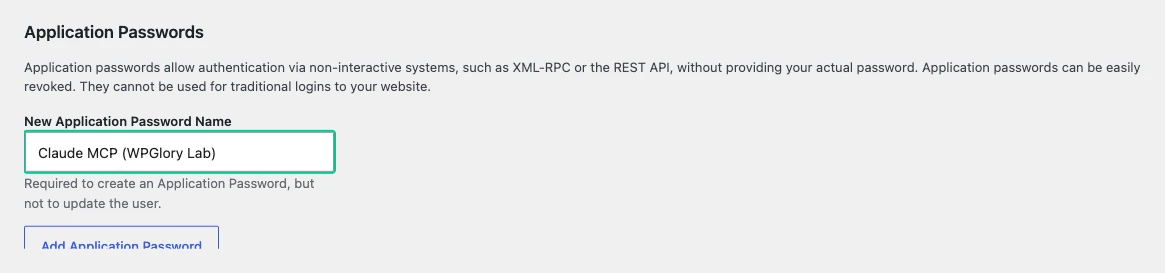
Each client has its own setup screen; Rank Math’s ChatGPT guide and setup-with-MCP guide walk through them. Once connected, start with a safe, read-only request like this one:
Audit this site's SEO with the Rank Math tools.
List the failing tests by priority, explain each one in plain English,
and wait for my OK before you change anything.
As a test, I ran two of the abilities directly on my Playground site. get-system-status returned the plugin version (1.0.280, Free plan), the active modules and the database tables, which is exactly what an AI needs before it suggests changes. audit-site-seo ran 38 tests and returned a score with a fix suggestion for each failing test.
My safety rules for MCP: use a separate Application Password (or OAuth) for each assistant, ask for a read-only audit first, approve every change yourself, and revoke access when you stop using it. The 11 abilities that change settings are powerful, so treat them like giving someone your SEO settings page.
Track your brand in ChatGPT and Gemini with AI Visibility
AI Visibility shows whether AI assistants mention your brand, for which questions, and which competitors they mention instead. Since 1.0.279 it tracks both ChatGPT and Google Gemini, can check in several languages, and can refresh daily, weekly or monthly depending on your plan.
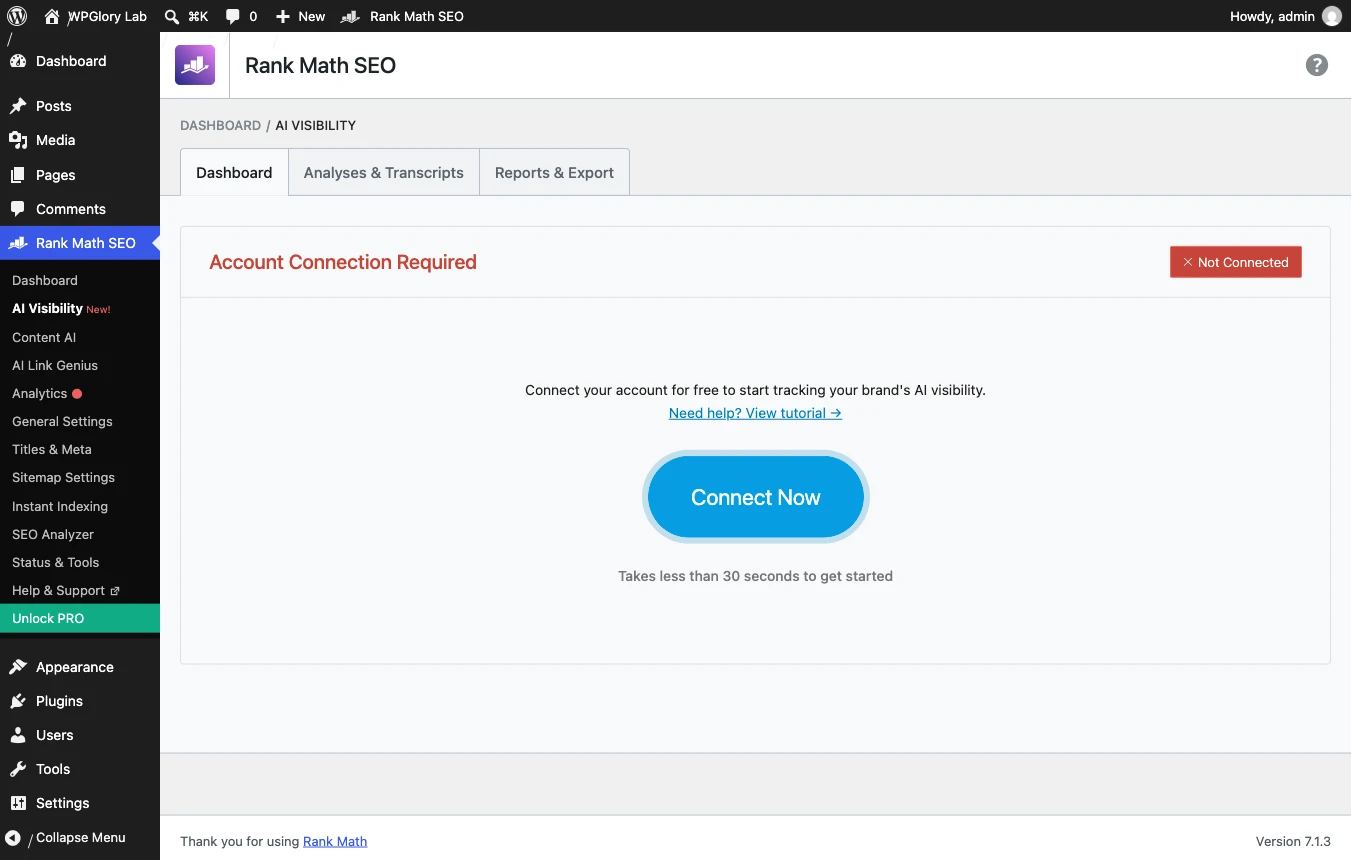
On a site without a connected account you see the screen above. Connecting is free; the tracking itself runs on a Rank Math AI plan, and the PRO, Business and Agency plans include a 15-day AI trial. After connecting, click Add Your First Brand and enter your brand name, URL, description, target country, language, refresh frequency and AI platforms. See Rank Math’s current plans.
If you use PRO, version 3.0.120 added RankBot AI, a new AI agent inside WordPress that replaced the older Content AI Chat.
Part 3: Optimize a post from 4/100 to 80/100
Settings are only half the job. The Rank Math score in the editor is where you will spend most of your time, so I wrote a short test post, “How to Back Up a WordPress Site in 10 Minutes”, and set the focus keyword to back up WordPress site.
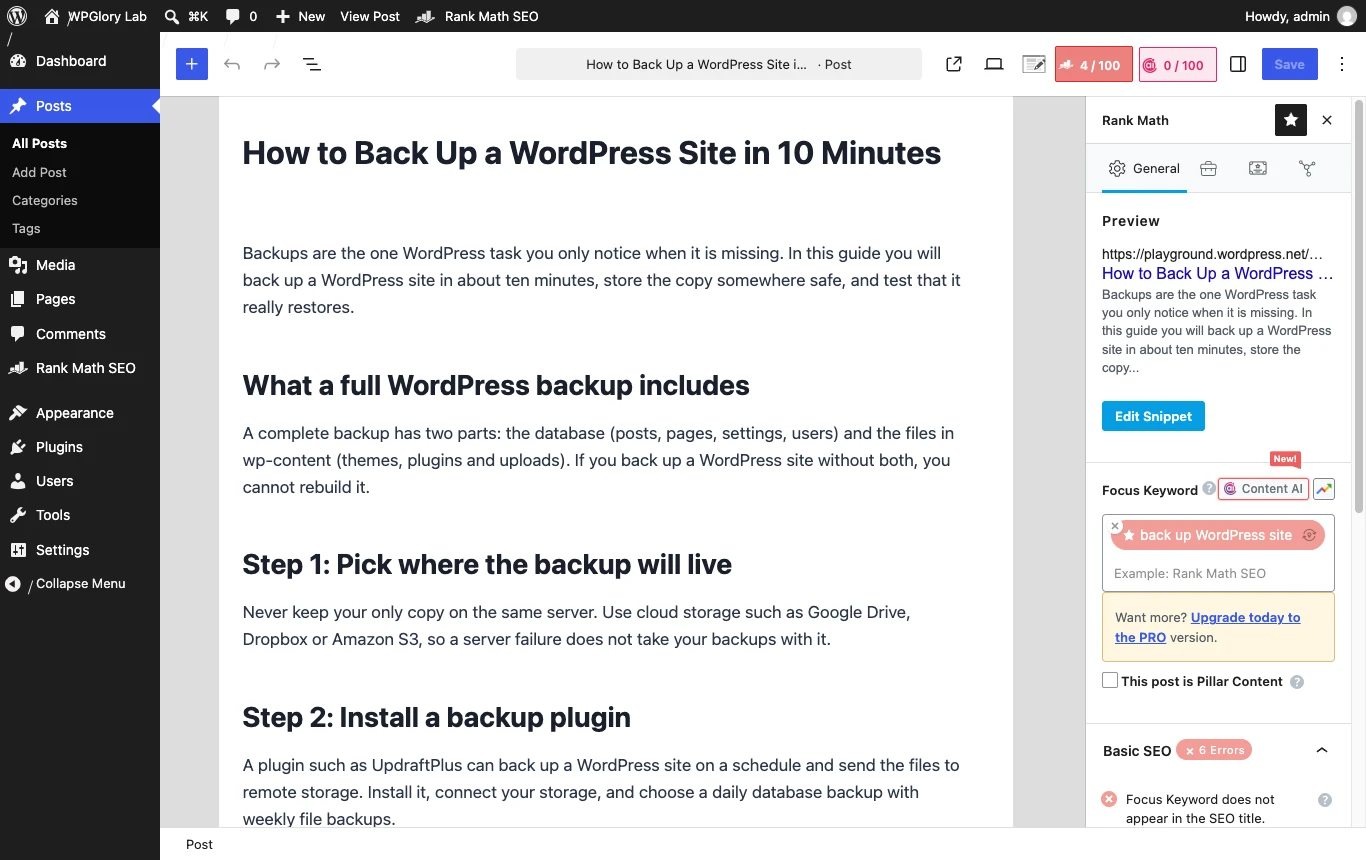
The score was 4/100, and the reason is the most useful lesson in this whole guide: Rank Math matches the focus keyword as an exact phrase. My text said “back up a WordPress site”, so “back up WordPress site” counted as zero uses, and almost every test failed.
Here is what I changed, in this order:
- Changed the focus keyword to the phrase readers actually use: back up a WordPress site.
- Edited the snippet: SEO title “Back Up a WordPress Site in 10 Minutes: Free, Easy Guide” (keyword first, a power word and a sentiment word) and a 140-character meta description with the keyword.
- Set the URL slug to
back-up-a-wordpress-site. - Used the keyword in the first sentence and in two H2 headings.
- Added an image with the keyword in its alt text, one internal link and one external link to the UpdraftPlus plugin page.
- Expanded the post from 191 to about 640 words with useful steps, not filler.
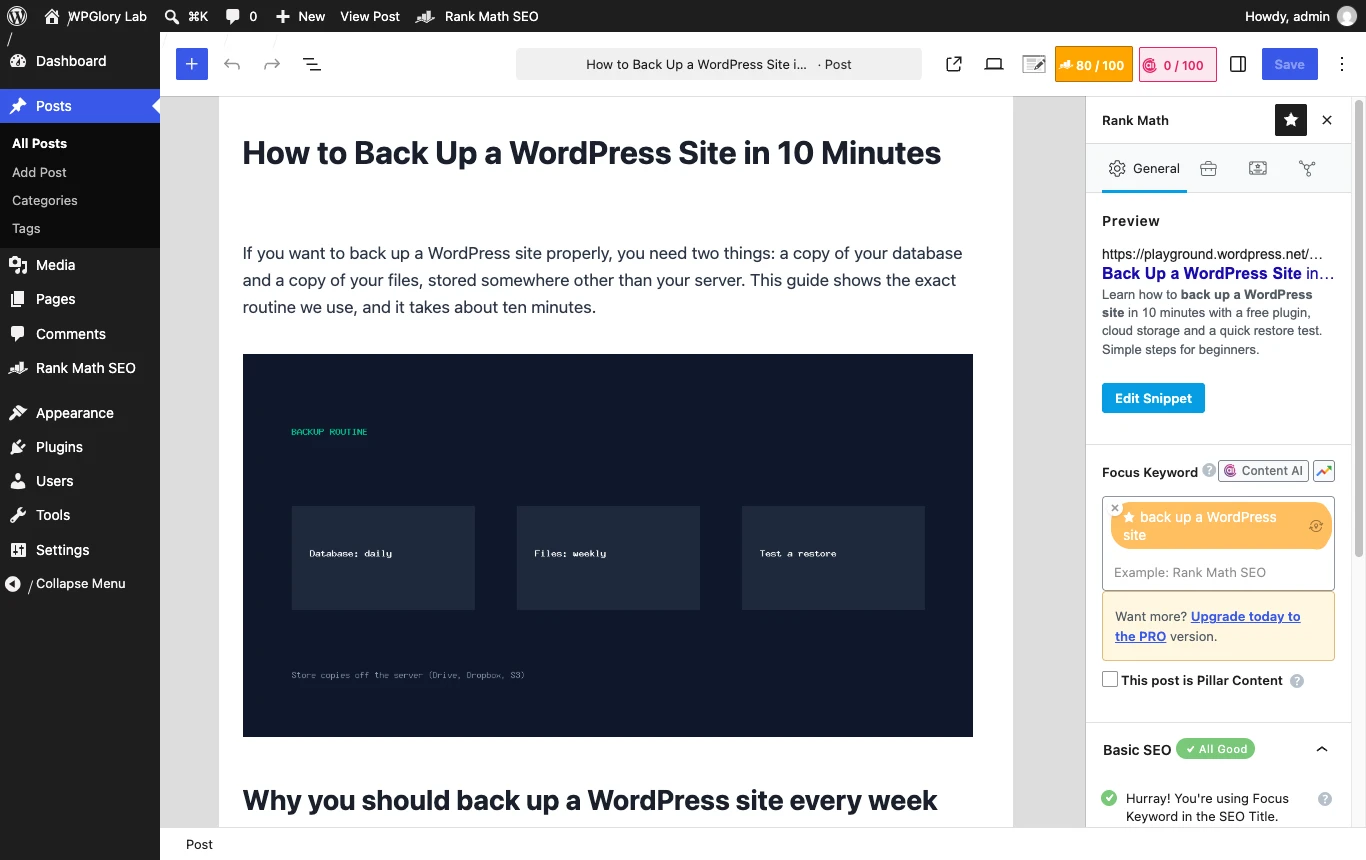
The score rose to 80/100, and Basic SEO showed “All Good”. The remaining points were for a table of contents plugin, the long Playground test URL and Content AI, none of which I needed for a ten-minute test. On a real post, aim for 80 or higher, but never stuff keywords just to turn a test green.
Add the right schema with the Schema Generator
Open the Schema tab in the Rank Math sidebar and click Schema Generator to change the schema for one post. The free plugin includes Article, Book, Course, Event, Job Posting, Music, Person, Product, Recipe, Restaurant, Service, Software and Video. FAQ, HowTo, Dataset and a few others need PRO.
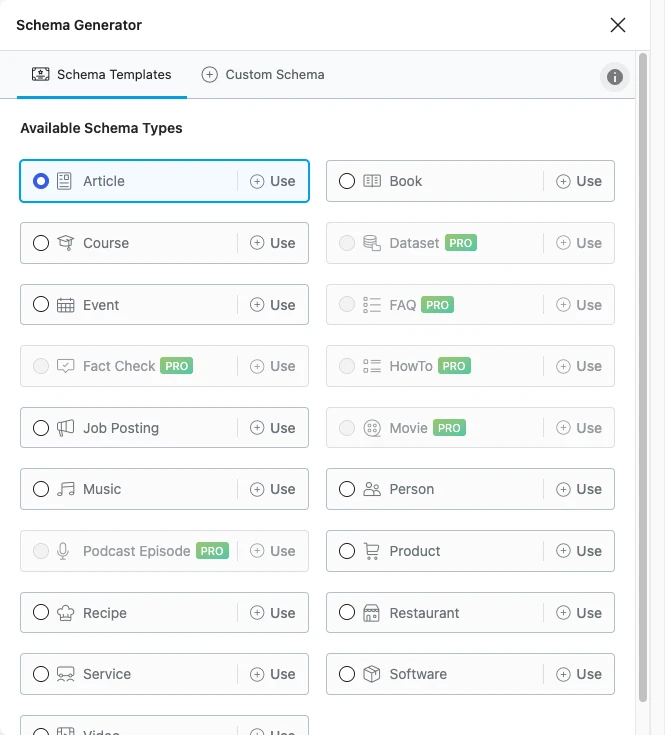
For this how-to post I kept Article. If you write recipes, reviews of software or product pages, switching to the matching schema helps you qualify for richer search results.
Rank Math free vs PRO: what you actually need
| Feature | Free | PRO |
|---|---|---|
| Setup wizard, titles and meta, sitemaps | Yes | Yes |
| llms.txt module | Yes | Yes |
| MCP server for AI assistants (29 abilities tested) | Yes | Yes, plus deeper link and competitor data |
| 404 Monitor and redirections | Yes | Yes, with more options |
| Schema Generator | Core types | All types, multiple schemas per post |
| Rank tracking | No | 500 keywords on PRO |
| AI Link Genius (internal linking) | No | Yes |
| RankBot AI agent | No | Yes |
| AI Visibility and Content AI | Free account, AI plan or credits needed | 15-day Rank Math AI trial included |
Start with the free plugin. Upgrade when you want rank tracking, AI Link Genius for internal links or more schema types. When I checked, PRO was listed at 7.99 a month billed yearly (shown in euros for my location; the pricing page uses your local currency) with a 30-day money-back guarantee. Check Rank Math PRO pricing.
My recommended Rank Math setup at a glance
| Setting | My choice | Why |
|---|---|---|
| Wizard mode | Advanced | See every option; switch back any time |
| Free account | Connect | Unlocks keyword suggestions, analyzer, AI features |
| Sitemaps | On: posts, pages, categories | Only content that should rank |
| Noindex empty archives | On | Avoids thin pages in Google |
| Nofollow external links | Off | Normal links to good sources are healthy |
| 404 Monitor and Redirections | On | Fix broken URLs before they cost traffic |
| Schema for posts | Article / Blog Post | Correct default for blogs |
| LLMS Txt | On, with categories | Clean map of your site for AI tools |
| MCP | Connect only when needed | Read-only audit first, approve every change |
Common Rank Math setup mistakes
- Chasing 100/100. 80+ with natural writing beats a perfect score full of repeated keywords.
- Using a keyword nobody types. Remember the exact-phrase match; write the keyword the way readers search.
- Running two SEO plugins. Import from Yoast or AIOSEO, then deactivate the old plugin to avoid duplicate meta tags.
- Leaving LLMS Txt off. It is off by default and takes one minute to set up.
- Giving an AI assistant full access with your main password. Use a dedicated Application Password or OAuth.
- Ignoring updates. SEO plugins touch every page, so keep them current.
Keep Rank Math updated and safe
One honest note. In October 2026, Rank Math reported a security incident affecting some Rank Math PRO 3.0.123 downloads made during a short window, and released a clean version, 3.0.124. The free plugin on WordPress.org was not named in the notice. If you use PRO, make sure you are on 3.0.124 or later and read Rank Math’s official changelog and security notice for what to check. On any site, keep off-site backups and update your SEO plugin promptly. Our testing method explains how we check plugins before we recommend them.
FAQ
How long does a Rank Math setup take?
About 10 minutes for the setup wizard and another 10 for llms.txt and the editor basics. Connecting Google Search Console adds a few minutes.
Is Rank Math free?
Yes. Everything in Part 1, llms.txt and the MCP server are in the free plugin. PRO adds rank tracking, AI Link Genius, RankBot AI and more schema types.
Does Rank Math support llms.txt?
Yes. Turn on the LLMS Txt module on the Rank Math dashboard, then choose post types, taxonomies and a link limit under General Settings, Edit llms.txt.
What is Rank Math MCP?
An MCP server inside Rank Math that lets AI assistants such as Claude or ChatGPT use Rank Math tools on your site. On my test site the free plugin registered 29 abilities, 18 read-only and 11 that change settings.
Can I switch from Yoast to Rank Math without losing my SEO data?
Yes. Rank Math detects Yoast during setup and imports titles, descriptions, focus keywords and settings. Check a few posts, then deactivate Yoast.
What Rank Math score should I aim for?
Aim for 80 or higher with natural writing. The last points often need a table of contents or more length, which is not always worth it.
Final verdict
Rank Math is still the best free SEO plugin to set up in 2026
The setup wizard gets the basics right in ten minutes, and the new AI search features (llms.txt, MCP and AI Visibility) are a real step ahead, mostly in the free plugin. Do the wizard, switch on LLMS Txt, connect an AI assistant carefully, and optimize your posts to 80+.