Slow WordPress Plugins: How to Find Them With 5 Free Checks (2026)
Some links on this page are affiliate links. If you buy through them we may earn a commission, at no extra cost to you. It never changes our verdict. How we test and make money
On this page
Short answer: Test one plugin at a time and compare before and after. Check three things: files loaded on pages that do not use the plugin (browser Network tab), PHP memory and database queries (Query Monitor), and page generation time. In our tests, Kadence Blocks, WPForms Lite and MailPoet added the most server time, while MetForm and CartFlows added the most files for visitors.
Slow WordPress plugins rarely announce themselves. Your site just gets a little heavier with every install until PageSpeed Insights turns orange. This guide shows the five free checks we use to find slow WordPress plugins, with real numbers from the 33 plugins we tested on our own site.
What makes slow WordPress plugins slow
A plugin can slow your site in three different places, and each needs a different check:
- In the browser: extra CSS and JavaScript files that every visitor downloads. In our test, MetForm added 18 files (922 KB) to pages without a form.
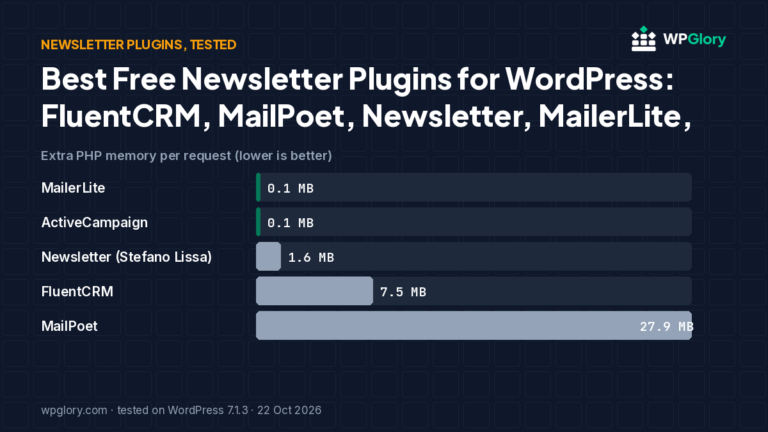
- On the server: extra PHP work and memory on every request. MailPoet added 27.9 MB of memory and 40 database tables.
- In the admin: heavy dashboards, notices and background tasks. These do not hurt visitors, but they slow you down every day.
Most speed tools only show the first kind of slow plugin. That is why a plugin can look fine in PageSpeed Insights and still make your hosting struggle.
Signs you have slow WordPress plugins
Before you start measuring, look for the symptoms. Any of these is a good reason to check your plugins:
- Your site is fast when logged out but slow in the dashboard or when logged in.
- Time to first byte is high even on cached pages, or your host warns you about CPU or memory limits.
- PageSpeed Insights lists CSS or JavaScript files from plugins you do not use on that page.
- The site got slower right after you installed or updated a plugin.
- Your database or backups have grown much faster than your content.
Each of these points to a different kind of slow plugin, which is why the five methods below check different things.
Method 1: Test plugins one at a time in WordPress Playground
WordPress Playground runs a full WordPress site in your browser, so you can install a plugin without touching your live site. This is how we tested all 33 plugins:
- Open Playground and install the same theme you use on your site.
- Load a normal page and note what it loads (Method 2) and how long it takes.
- Install and activate one plugin, then load the same page again.
- Write down the difference, deactivate the plugin and move on to the next one.
Playground is slower than real hosting, so treat timings as relative. File counts, memory and table counts are reliable, because they do not depend on the speed of the machine.
Method 2: Check the Network tab on a page that does not use the plugin
The fastest check takes two minutes. Open a page that does not use the plugin, for example a blog post when you are testing a form plugin:
- Open the page in a private window so you see what visitors see.
- Open your browser developer tools and go to the Network tab.
- Reload the page and filter by CSS and JS.
- Look for file names that contain the plugin’s folder name.
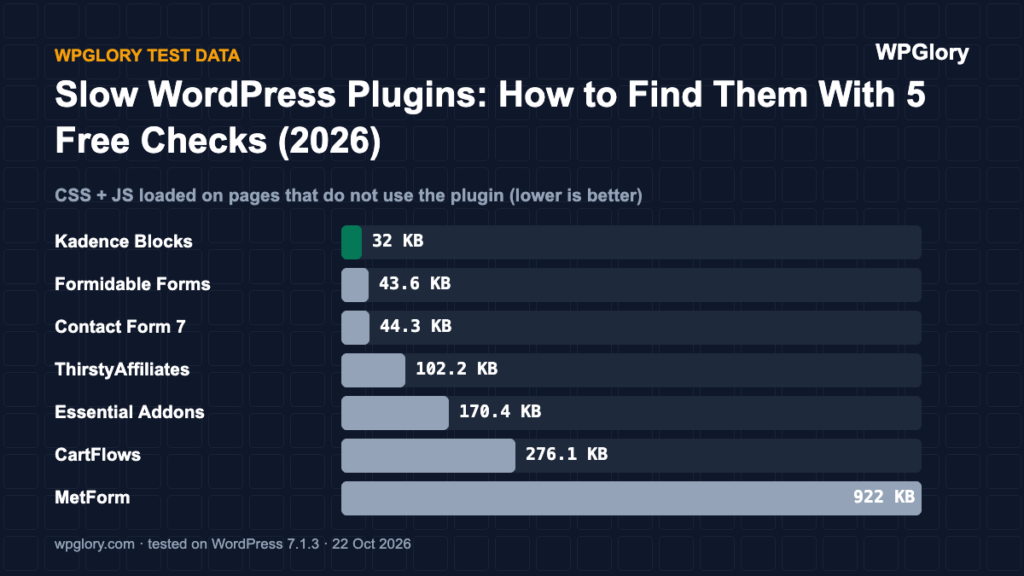
This check catches the most common kind of slow plugin. Anything you find there is weight every visitor pays for. In our tests, Contact Form 7 loaded 5 files (44.3 KB) on every page, Essential Addons loaded 5 files (170.4 KB) on pages not built with Elementor and ThirstyAffiliates loaded 3 files (102.2 KB).
Method 3: Measure memory and queries with Query Monitor
Query Monitor is a free developer plugin that shows memory use, database queries and PHP errors for every page you load while logged in. Use it on a staging copy:
- Install Query Monitor and load a page. Note the peak memory and the number of queries in the admin bar.
- Activate the plugin you want to test and load the same page again.
- Open the Queries by Component panel to see how many queries came from that plugin.
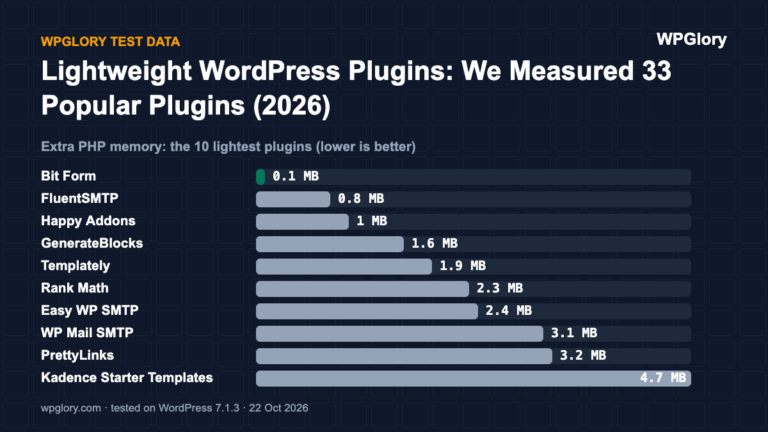
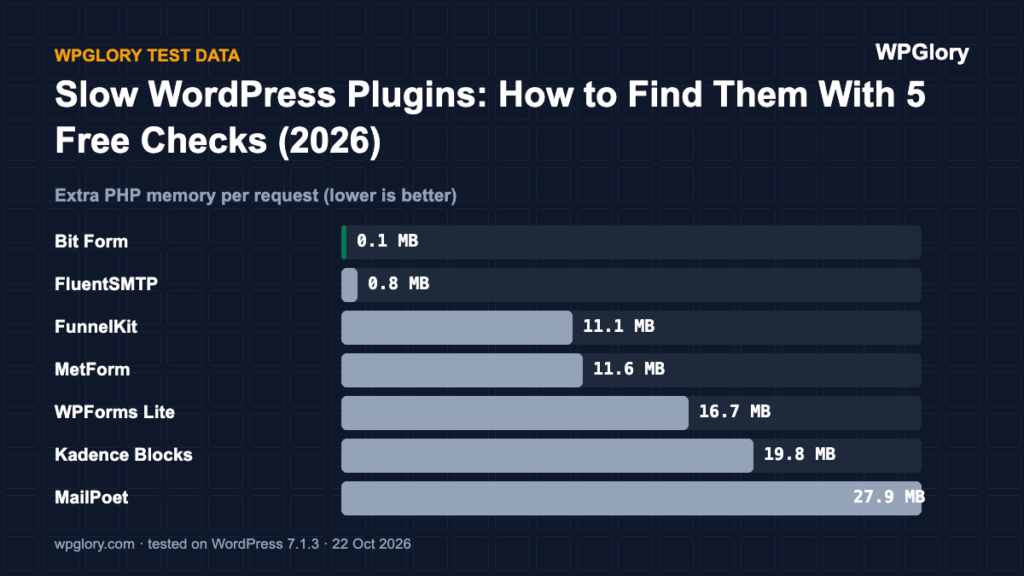
Query Monitor finds slow WordPress plugins that the Network tab cannot see, because their cost is on the server. Our memory measurements followed the same idea. The biggest increases were MailPoet (27.9 MB), Kadence Blocks (19.8 MB), WPForms Lite (16.7 MB) and MetForm (11.6 MB). At the other end, Bit Form and the MailerLite and ActiveCampaign form plugins added 0.1 MB.
Method 4: Compare page generation time before and after
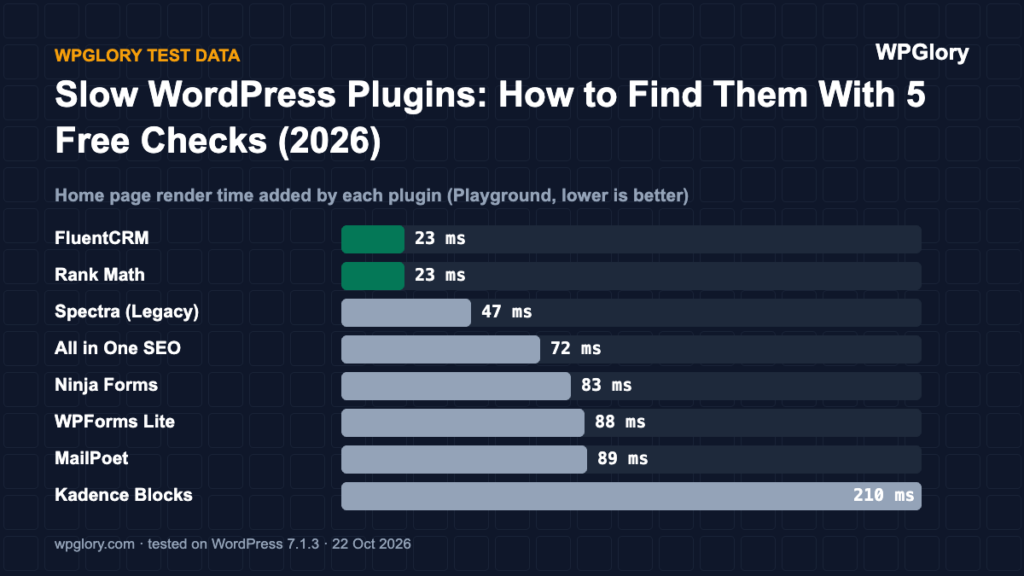
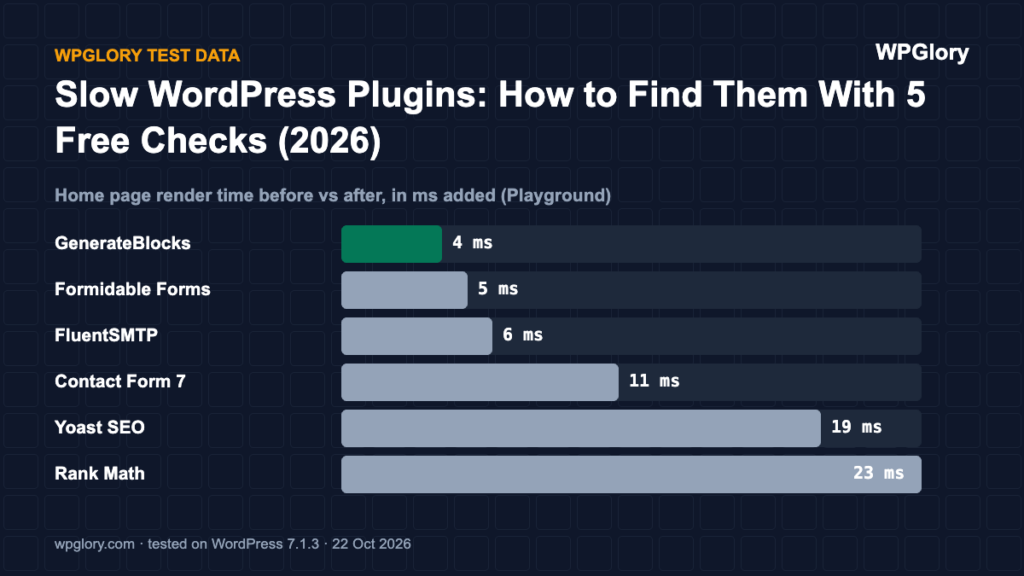
The fourth check is time. We rendered the home page five times before and after each plugin and took the median. These are Playground numbers, so the absolute values are not what you will see on real hosting, but the differences between plugins are telling:
| Plugin | Before | After | Added |
|---|---|---|---|
| Kadence Blocks | 123 ms | 333 ms | +210 ms |
| MailPoet | 120 ms | 209 ms | +89 ms |
| WPForms Lite | 129 ms | 217 ms | +88 ms |
| Ninja Forms | 130 ms | 213 ms | +83 ms |
| All in One SEO | 119 ms | 191 ms | +72 ms |
| Spectra (Legacy) | 120 ms | 167 ms | +47 ms |
| FluentCRM | 120 ms | 143 ms | +23 ms |
| Rank Math | 117 ms | 140 ms | +23 ms |
| Yoast SEO | 126 ms | 145 ms | +19 ms |
| Contact Form 7 | 127 ms | 138 ms | +11 ms |
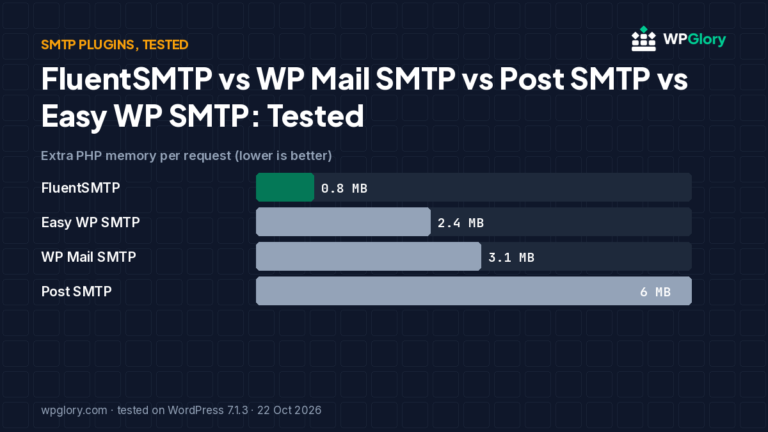
| FluentSMTP | 116 ms | 122 ms | +6 ms |
| Formidable Forms | 130 ms | 135 ms | +5 ms |
| GenerateBlocks | 122 ms | 126 ms | +4 ms |
A slow plugin shows up here even when it loads no files. Kadence Blocks added the most time in this test (+210 ms) on a page that used none of its blocks. GenerateBlocks, FluentSMTP and Formidable added 6 ms or less. On real hosting all of these numbers would be smaller, but the order would usually be similar.
Method 5: Run PageSpeed Insights on a staging copy
PageSpeed Insights shows how a page feels to real visitors, so it confirms whether slow WordPress plugins actually hurt your users. Use it last, after you know which plugins load files or use a lot of memory:
- Test the same page before and after a plugin change, three times each, and use the median.
- Compare Largest Contentful Paint and Total Blocking Time, not just the overall score.
- Clear your caching plugin between runs, or you will measure the cache instead of the plugin.
What to do when you find slow WordPress plugins
Finding a slow plugin does not always mean deleting it, and most slow WordPress plugins can be tamed. Work through these options in order:
- Check the plugin settings first. Many plugins can turn off modules or widgets you do not use, which reduces what they load.
- Limit where it loads. Some plugins, such as Contact Form 7, only need their files on one page. A small snippet or a script manager can unload them elsewhere.
- Replace it with a lighter alternative. Our list of lightweight WordPress plugins compares 33 plugins across nine categories.
- Remove it. If you have not used a plugin in months, deactivate it and delete it.
A quick checklist before you install a new plugin
The easiest slow plugin to deal with is the one you never install. Before adding a plugin to a live site, run through this list:
- Check the last update date and the “tested up to” version on WordPress.org.
- Read the one-star reviews for mentions of speed, memory or conflicts.
- Install it on a staging copy or in Playground first and run Method 2 on a page that does not use it.
- Look at the settings for module switches, so you can turn off what you do not need.
- Decide in advance what would make you remove it again.
This takes ten minutes and saves hours of hunting for slow WordPress plugins later. It is the same routine we follow before any plugin goes on WPGlory.
The slowest plugins in our own tests
For reference, these were the plugins with the biggest cost in each area across all 33 tests:
- Most files for visitors: MetForm (922 KB), CartFlows (276.1 KB), Essential Addons (170.4 KB), ThirstyAffiliates (102.2 KB).
- Most memory: MailPoet (27.9 MB), Kadence Blocks (19.8 MB), WPForms Lite (16.7 MB).
- Most database tables: MailPoet (40), FluentCRM (17), Bit Form, Ninja Forms and PrettyLinks (11 each).
- Most render time added in Playground: Kadence Blocks (+210 ms), MailPoet (+89 ms), WPForms Lite (+88 ms).
None of these is automatically a slow plugin for your site. Each one also does a lot, and several are good choices when you need their features. The point is to install them because you need them, not by default, and to check what they cost after you do.
FAQ
How many plugins is too many?
There is no fixed number. One heavy plugin can cost more than twenty light ones. Measure what each plugin adds instead of counting them.
Do deactivated plugins slow down WordPress?
No. Deactivated plugins do not run. They still take disk space and need updates for security, so delete the ones you do not plan to use.
Can a caching plugin fix slow WordPress plugins?
Partly. Page caching hides server cost for cached pages, but it does not remove CSS and JavaScript files that visitors download, and it does not help logged-in users or uncached pages.